
Viewing Existing Appointments
Appointments can be viewed via the calendar.
Note : to set up your calendar you must integrate with either Microsoft Teams, Google Meet or Zoom. You can also view individual patients' appointments via the "Patient Menu".
Viewing Appointments Via The Calendar
- To view your existing appointments, select the "Calendar" tab under patient care.
- Then select "View Calendar".
 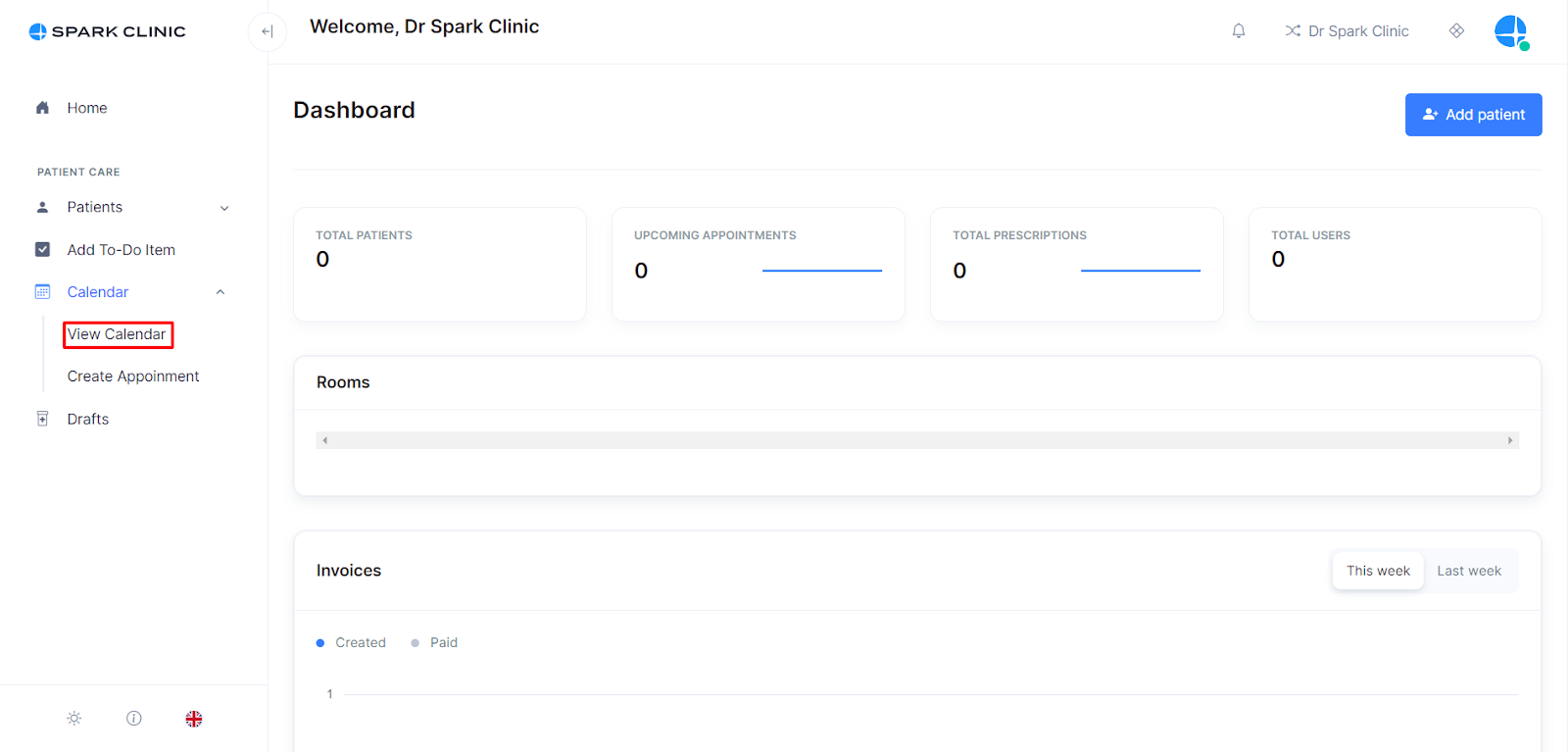
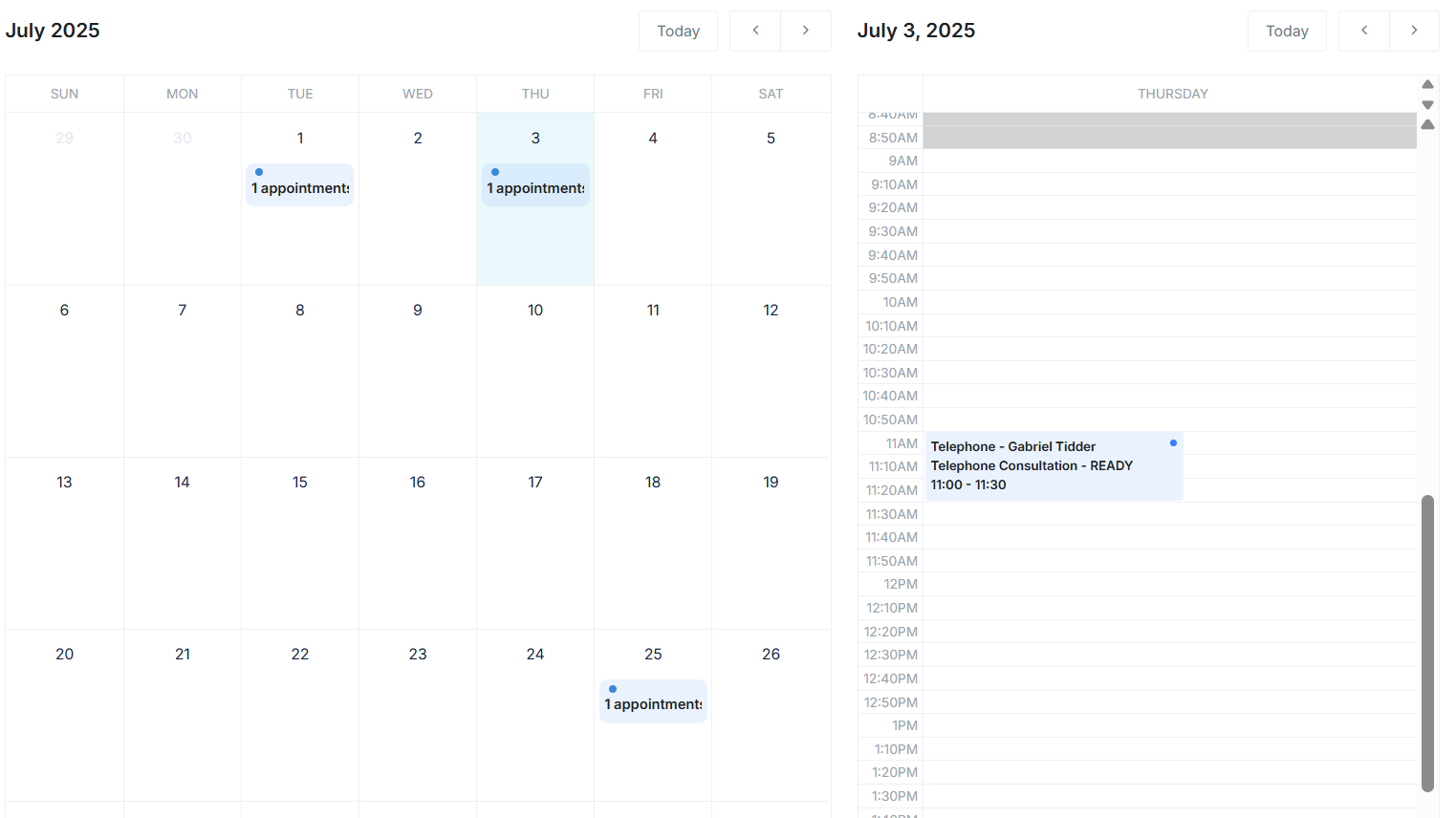
- From this calendar view, you will be able to view appointments by room, day and personnel.
Viewing Individual Appointments From The Patient Profile
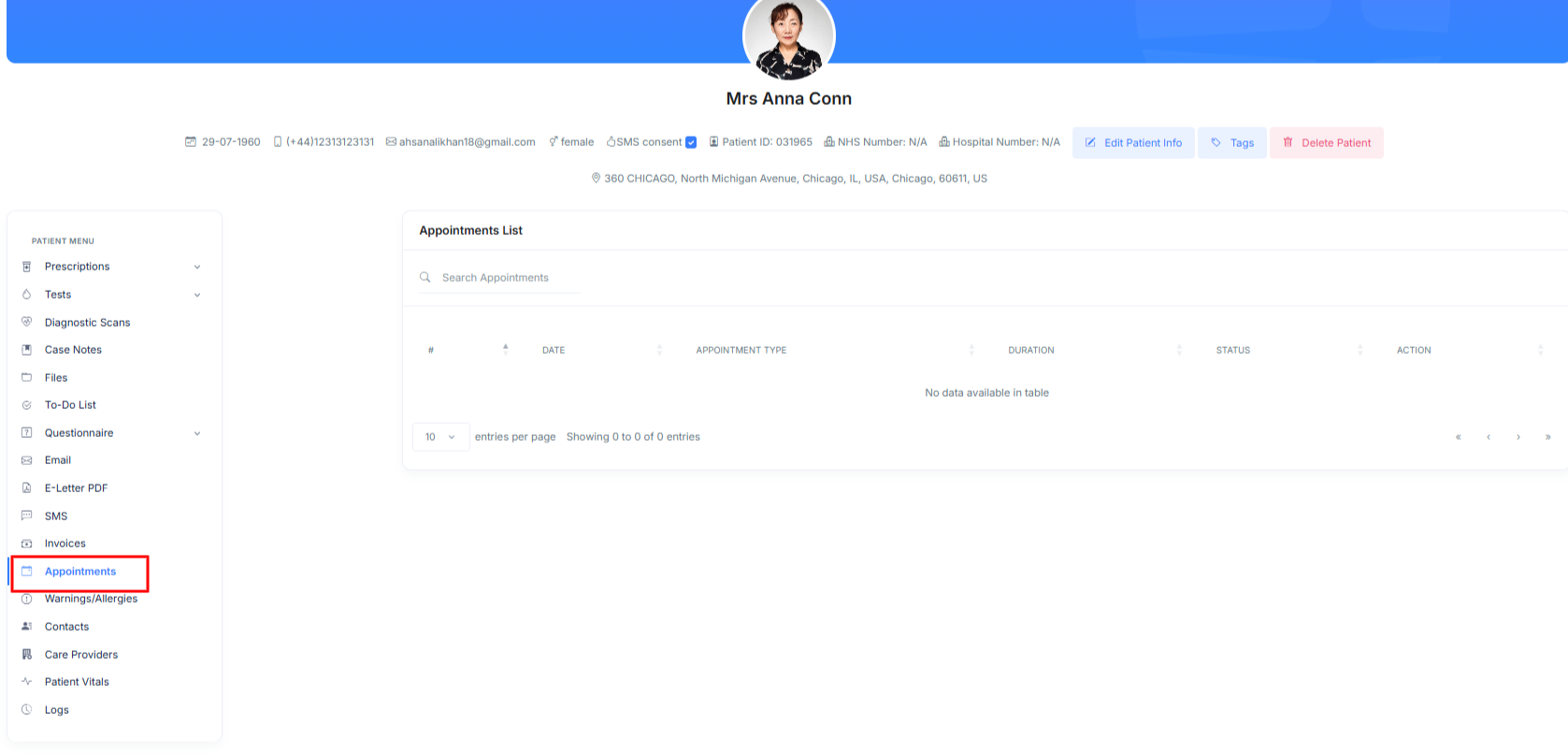
- First select "Patient List" under "Patient Care".
- Next Select your Patient to be taken to their patient profile.

- Now simply select "Appointments" and the patients appointment history will be displayed.
Linking Your Calender For Calender Management
Users can also use Microsoft Teams, zoom or google for Video Appointments and calendar management.
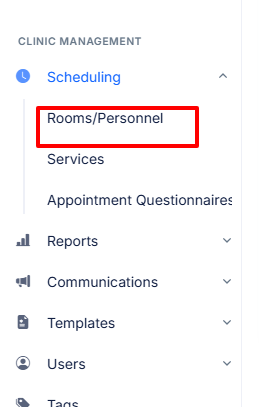
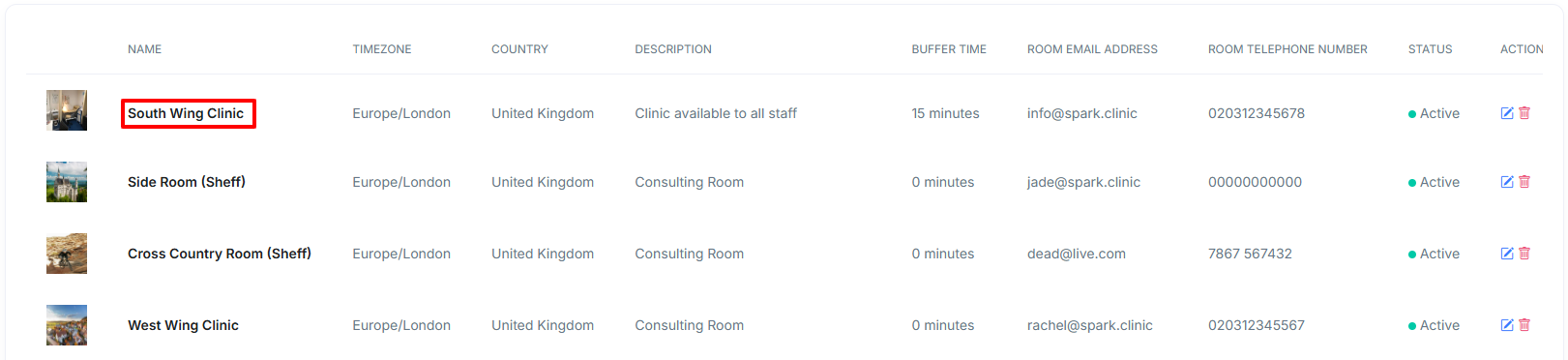
- To sign in, open the drop down menu labelled âSchedulingâ listed under clinic management then select âRooms/Personnelâ.
- Now select the room you wish to sync your calendar with, for example I am selecting my âSouth Wing Clinicâ.
- Now scroll down and you will be presented with the following icons to sign in and sync your relevant calendar.

Calendar Related Tips
- If using a Microsoft account, ensure that the Microsoft account comes with a Teams subscription which is required to generate Teams video links.
- Google and Outlook will automatically schedule a calendar event in your associated calendar.
- In addition to Spark Clinic's appointment confirmation emails, Outlook and Google will send a separate email that allows the recipient to automatically add the event to their calendar.
Zoom Sign Out vs Access Revoke
- You can link your Zoom account to multiple rooms simultaneously. To disconnect a Zoom account from a specific room, select "Sign out from Zoom" within that Room/Resource's window. To completely remove your Zoom account from the Spark Clinic system, you'll need to select "Revoke Spark Clinic app from Zoom." Revoking access means that any Resource/Room that was linked to that account within Spark Clinic loses access to the connection with that zoom account.

