Emails
Sending An Email
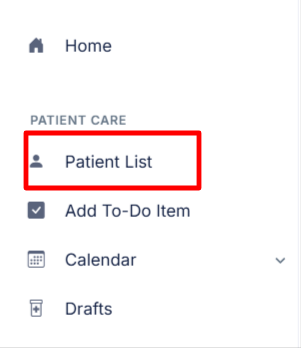
- To send an email you must first select the patient you wish to send the email to from the 'Patient list'.
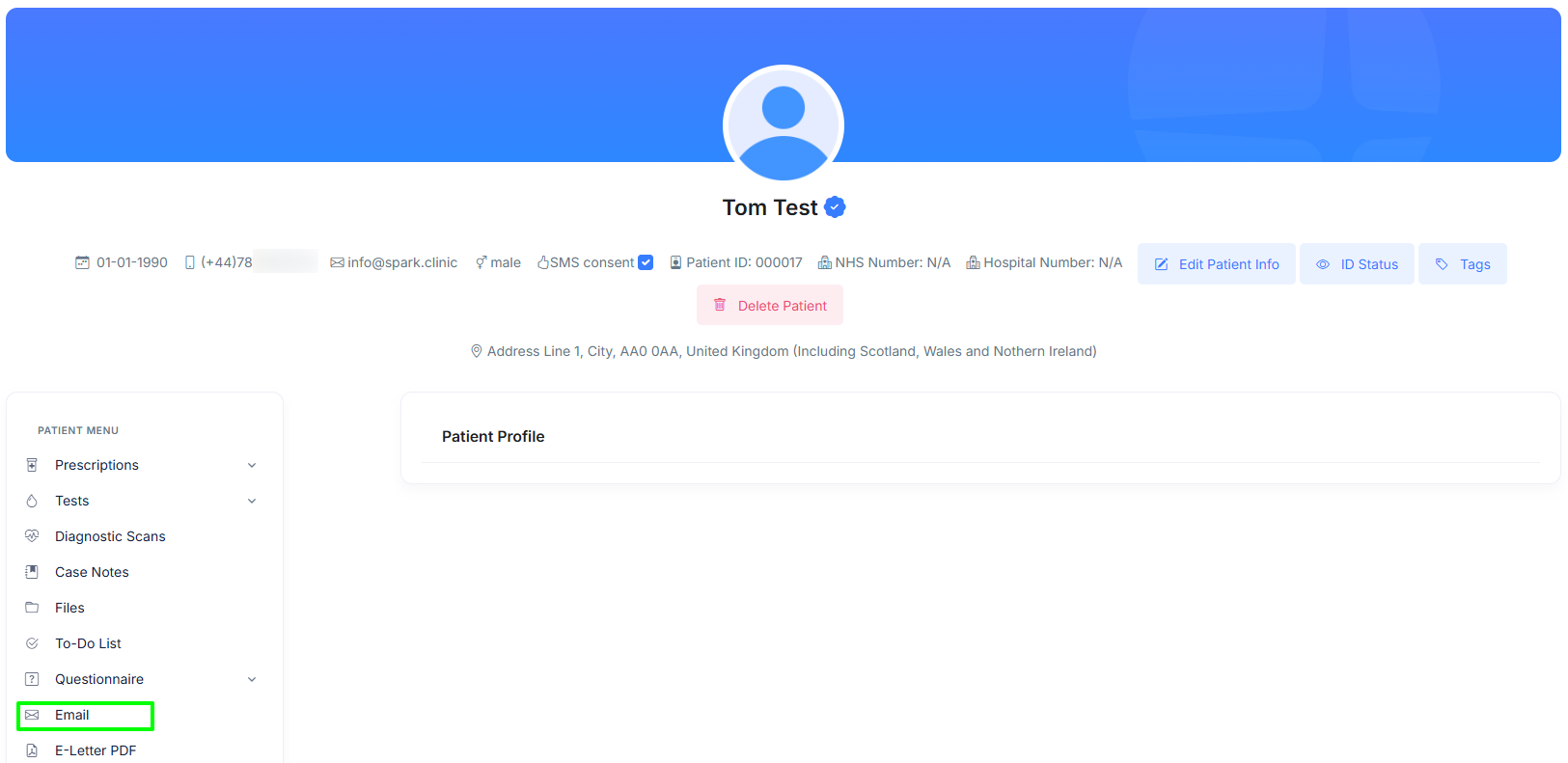
- Now you've selected your patient you should be able to see the patient menu, now select 'Email'.
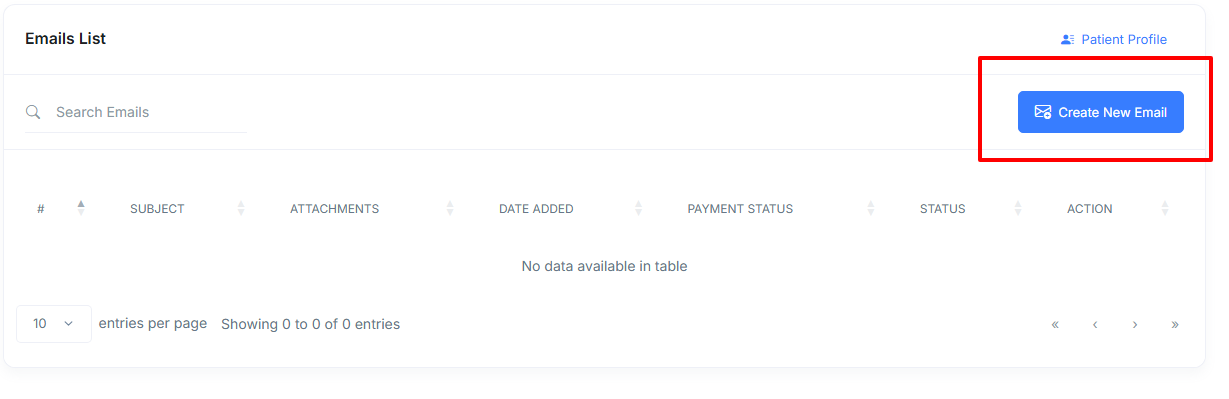
- From here you can select ÃÂâÃÂÃÂÃÂÃÂcreate a new emailÃÂâÃÂÃÂÃÂà.
- Now chose whether to use a template or start from scratch.
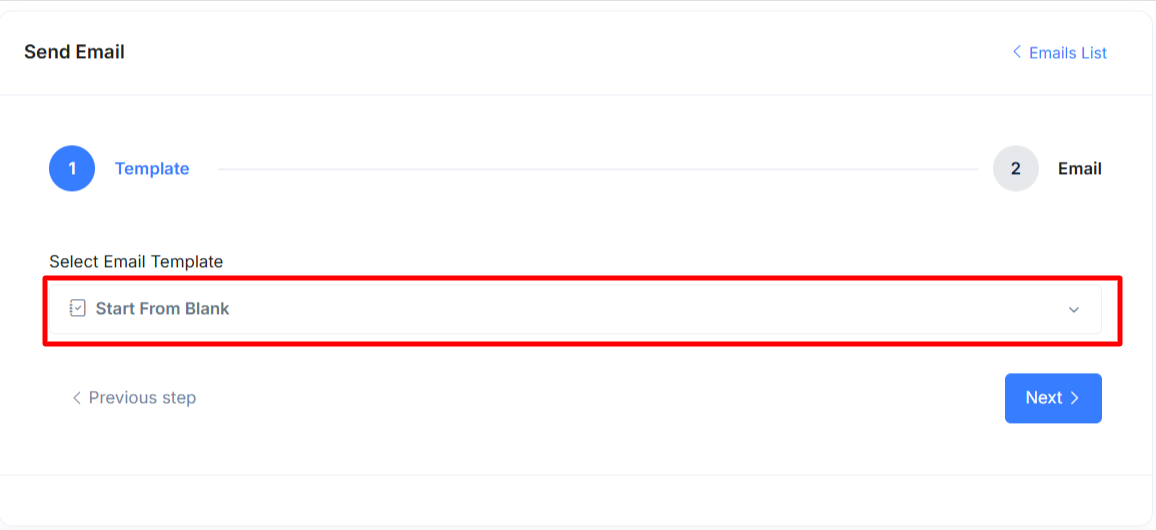
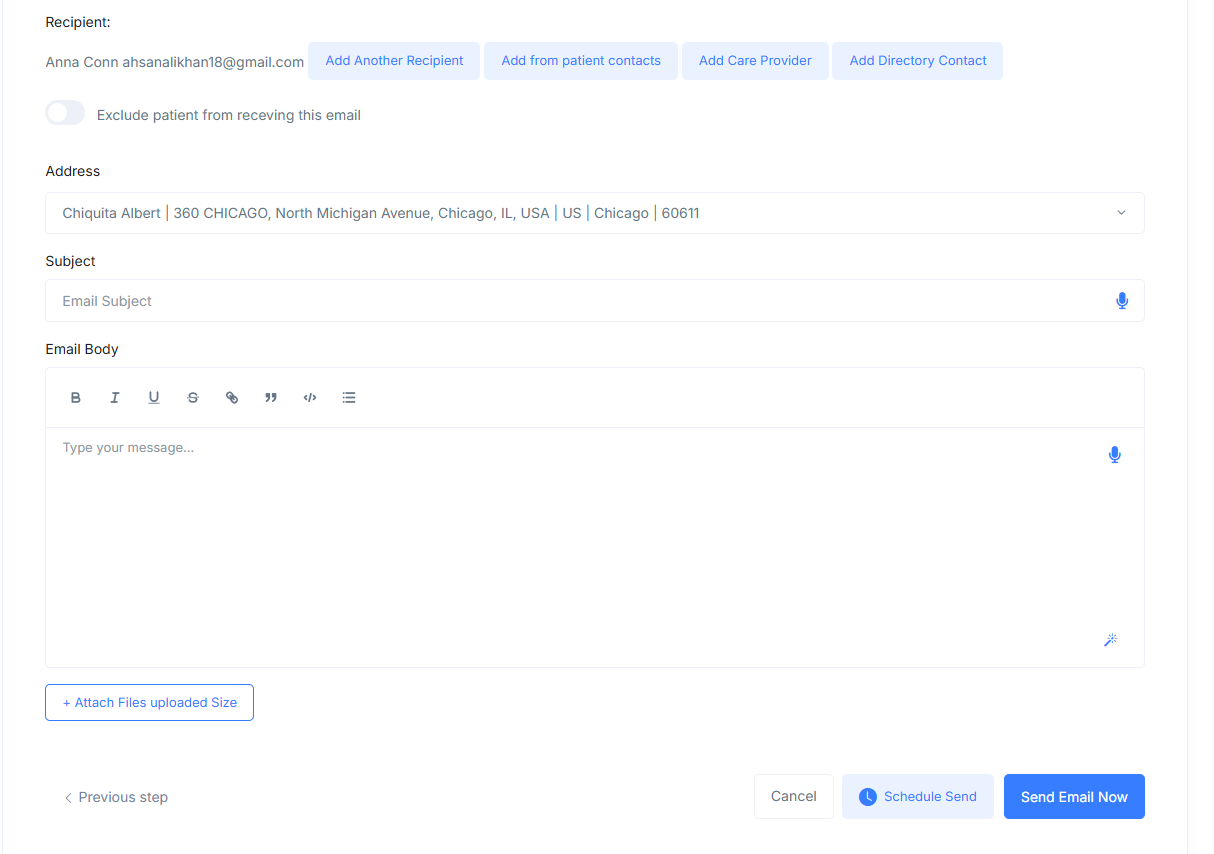
- You will now be brought to this screen below where you can draft and send your email.
Email Tips
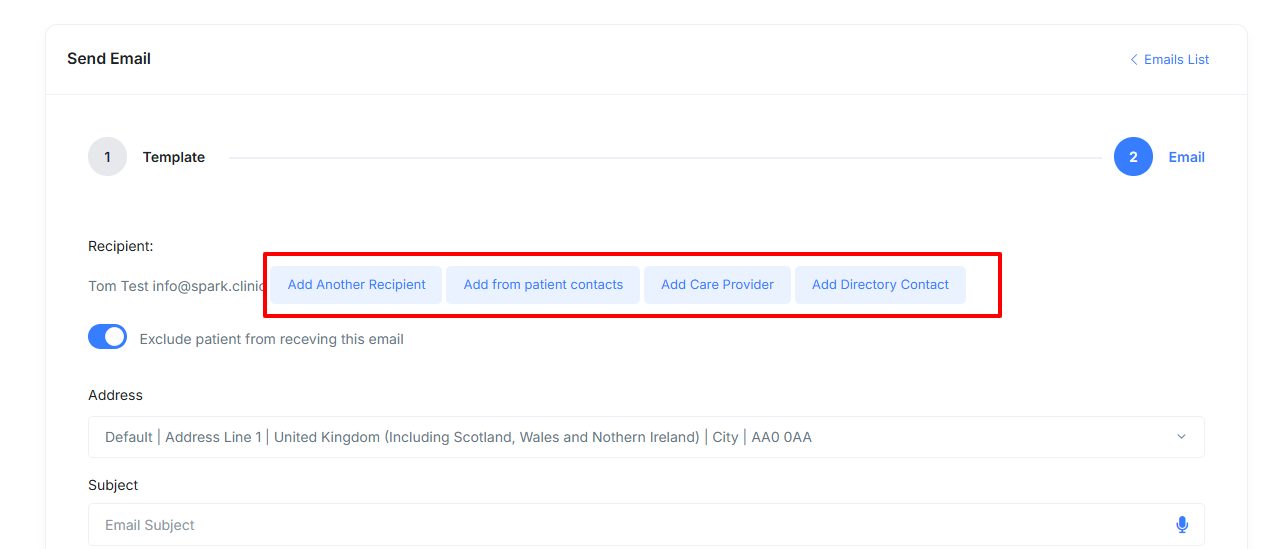
- You can add multiple recipients when sending an email - freestyle email add, add from care givers, add from patient contacts.
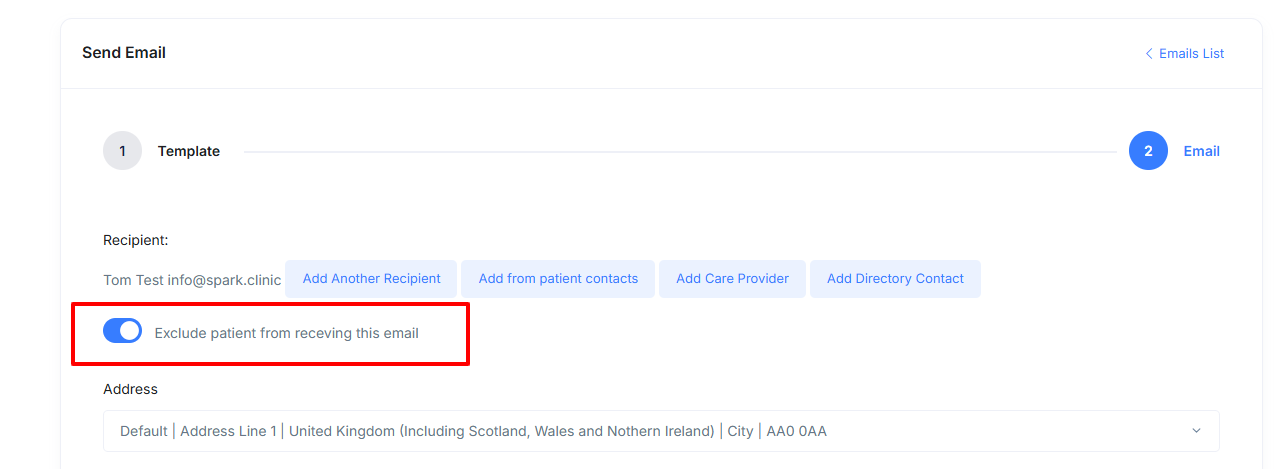
- You can exclude a patient from receiving an email, if you are sending the email to other recipients but do not want the patient to receive the email.
- When an email is sent to multiple recipients, their email addresses will be in bcc to maintain privacy.
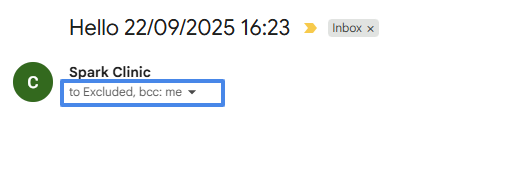
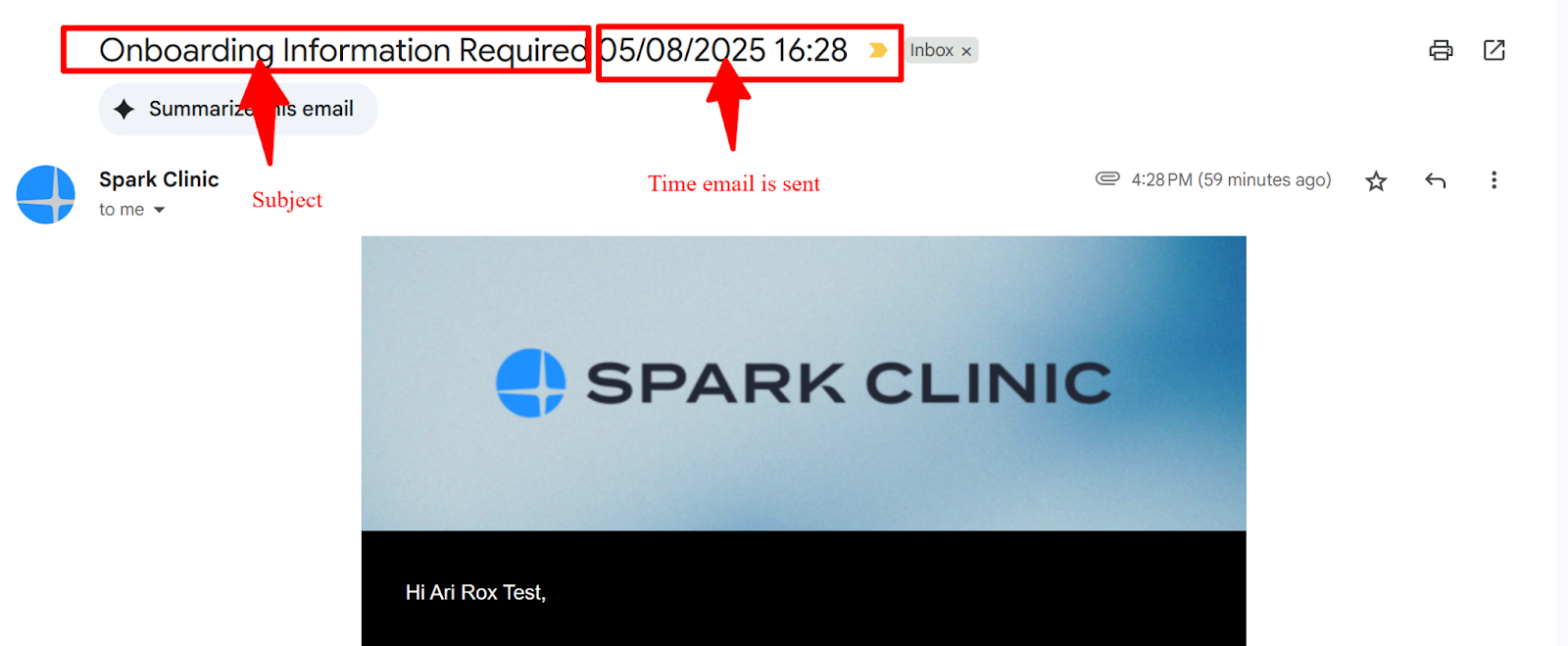
- The Email Subject Shown to recipient's inbox will be the subject added in the email (including emails generated by email template)
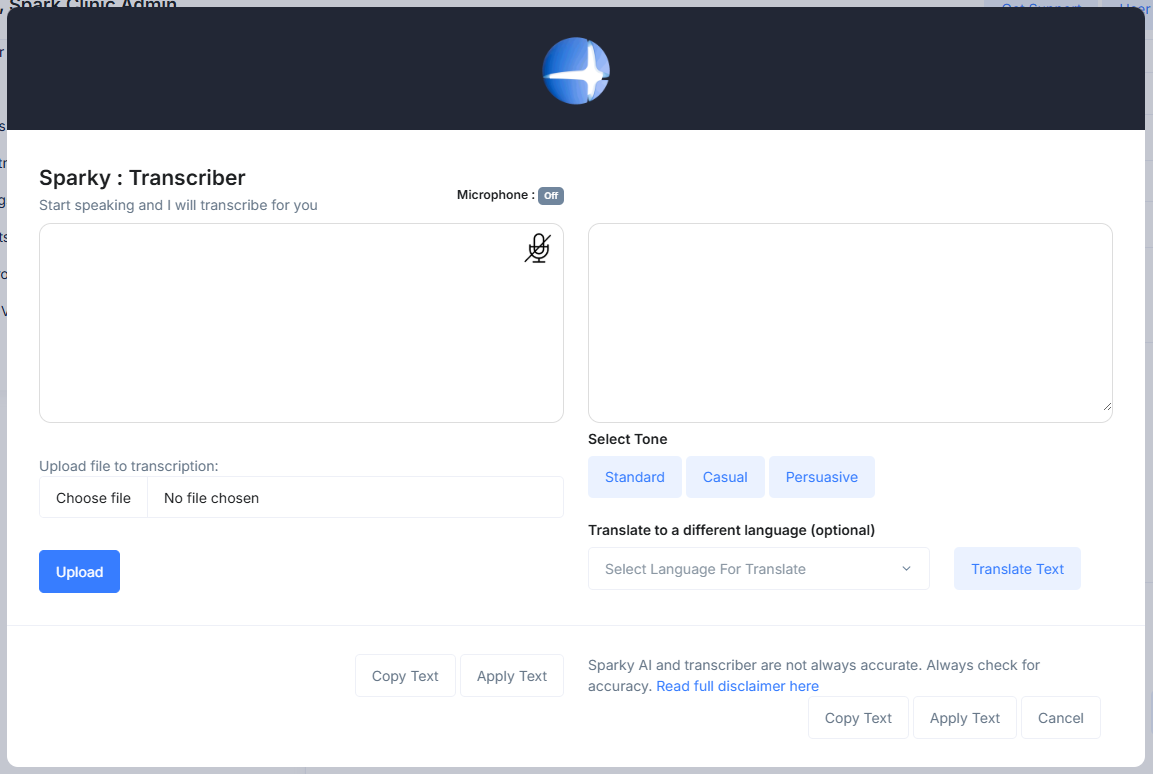
- When composing a new email, you can use the dictation feature which allows you to convert voice to text. Click the microphone icon in the textbox to get started.
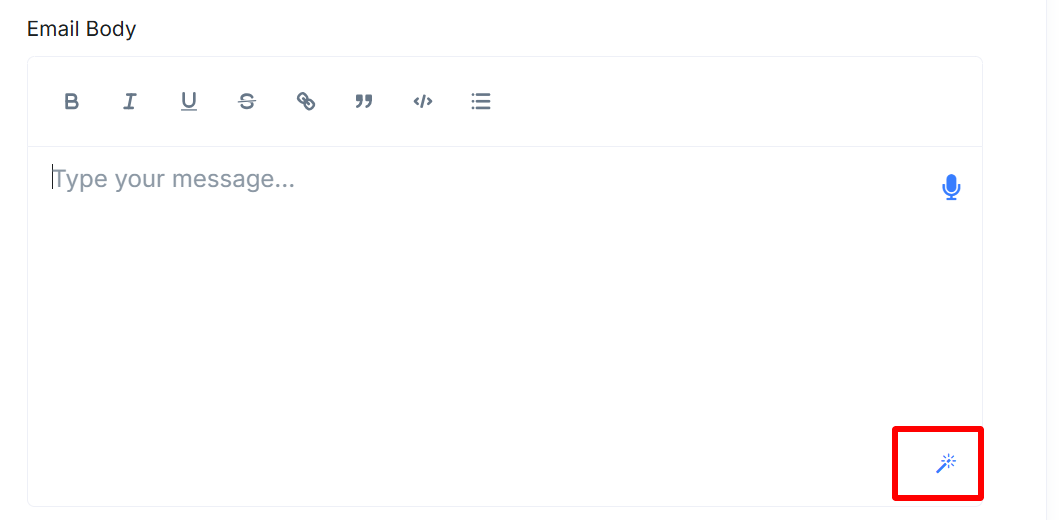
- You can also use he "magic wand" feature which enables you to refine your text with a single click. Magic wand will correct grammar, spellings, punctuation and add the small changes required to polish up your text.
Creating Drafts
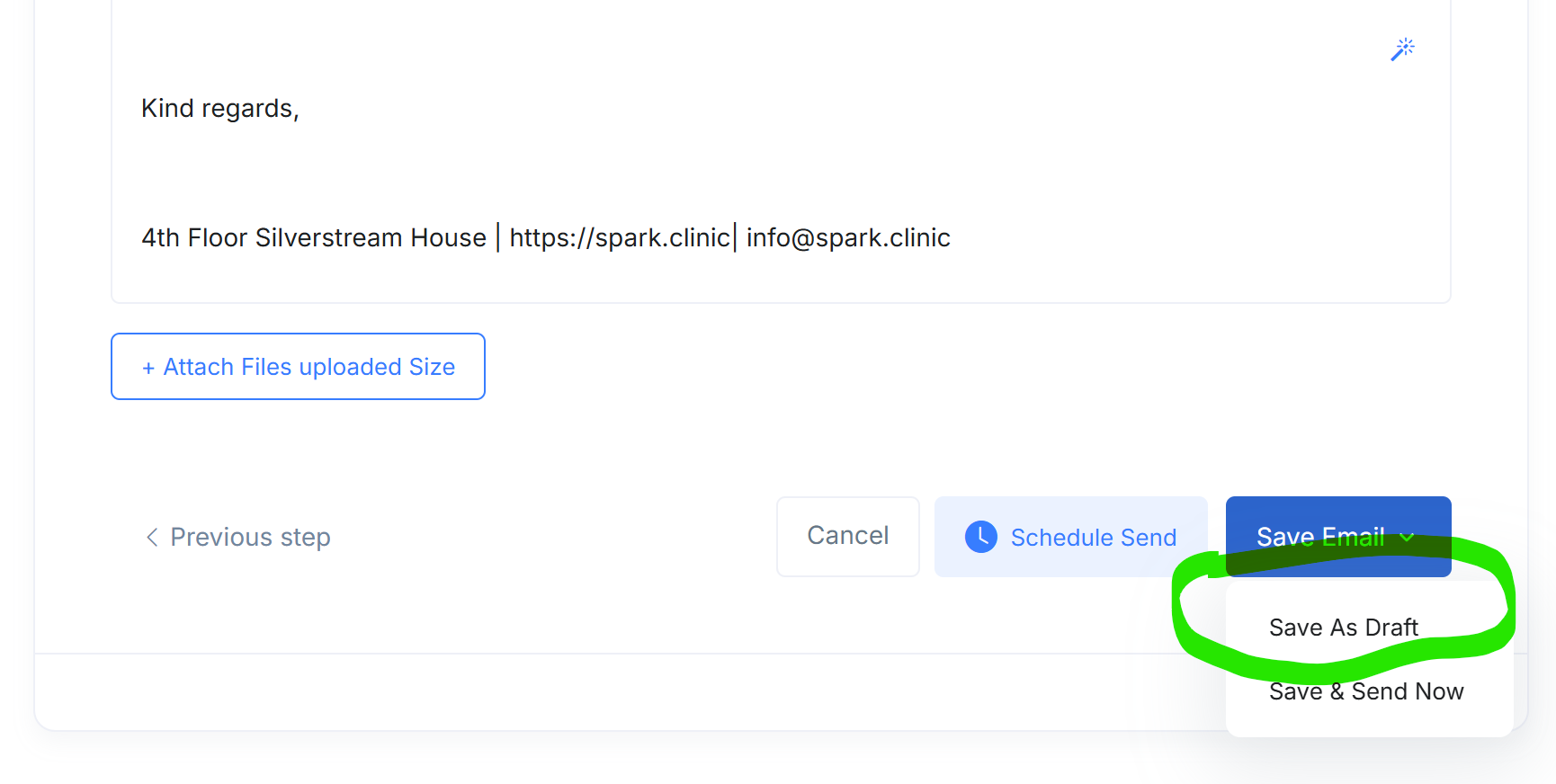
You can create a draft email so that you can come back in the future to edit/finalise and send. It is simple, click 'Save As Draft' and the email will be saved as a draft .