
The Patient Signup Form
The Patient Sign Up Form is a form that allows you to ask patients (or prospective patients) to complete their details via a form. Once the form is completed, the patientâs profile is automatically created in your clinic and there, you will be able to complete any clinical administration related to the patient.
What you can do with your Patient Signup Form:
- Add additional questionnaire forms to collect any additional information during the sign up process
- Collect Care Provider information including NHS GP details
- Collect the patientâs primary contact details eg next of kin
Where Is The Link For the Patient Signup Form?
- To locate the link for the Patient Signup Form go to Clinic Management>Scheduling>Services.
- Here you will see the "Copy Patient Signup Form URL" button, this link is what will be used to send to your patients.

Attaching Questionnaires To The Patient Registration Form
It is possible for a clinic to attach additional questionnaires to the patient registration form. To do so, you will need to create a template questionnaire first (see 'Questionnaires').
Attaching questionnaires to your patient signup form allows you to collect additional information that you may require at the time of onboarding a new patient. When an attached questionnaire is completed, the information will be added automatically to that patient's profile.
Each time a patient completes the Patient Signup Form, you will receive an email to your organisation's email. You also get an email to notify you if the questionnaire attached to your Patient Signup Form has been completed.
How to attach a questionaire to your Patient Signup form
To attach a questionnaire, you must first have created some questionnaire templates.
- First go to "Templates" under the "Clinic Management" menu then select "Questionnaires".
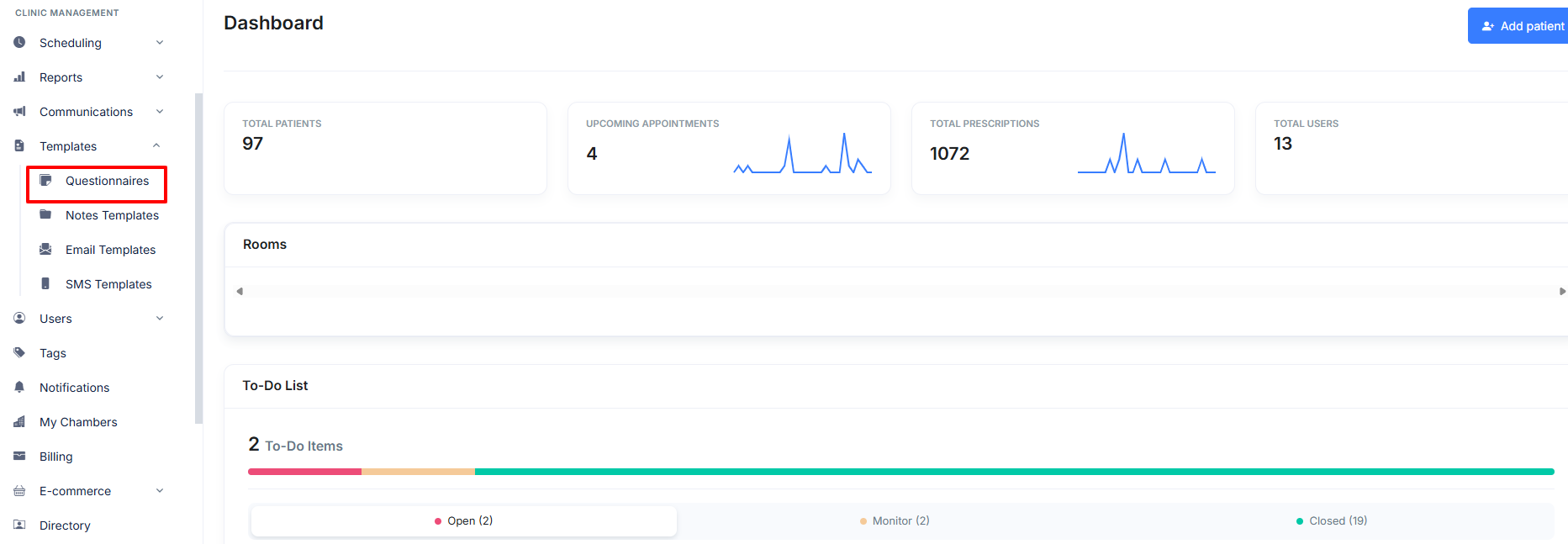
- Next, you'll see a list of your questionnaire templates. Click the toggle under "Enable For Patient Signup."

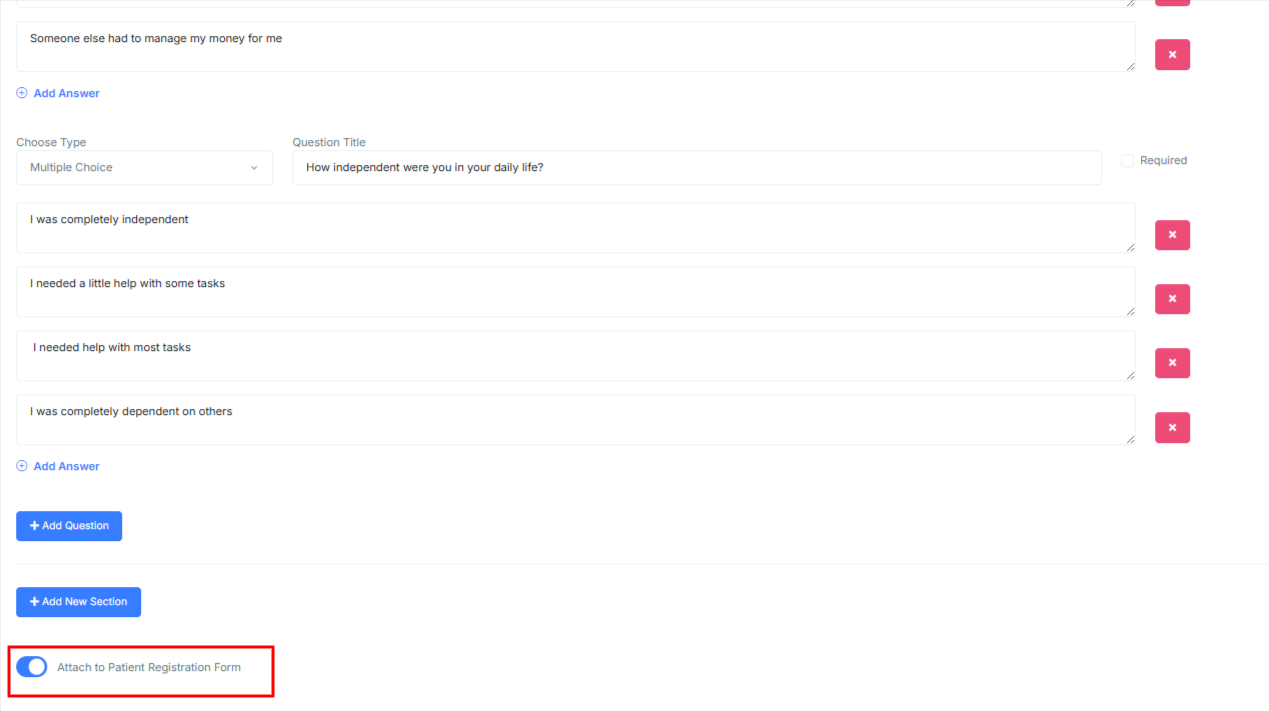
- You can also attach a questionnaire to the patient signup form by selecting the "Attach to Patient Registration Form" switch inside the questionnaire creation window.
Collecting Care Provider And Primary Contact Information
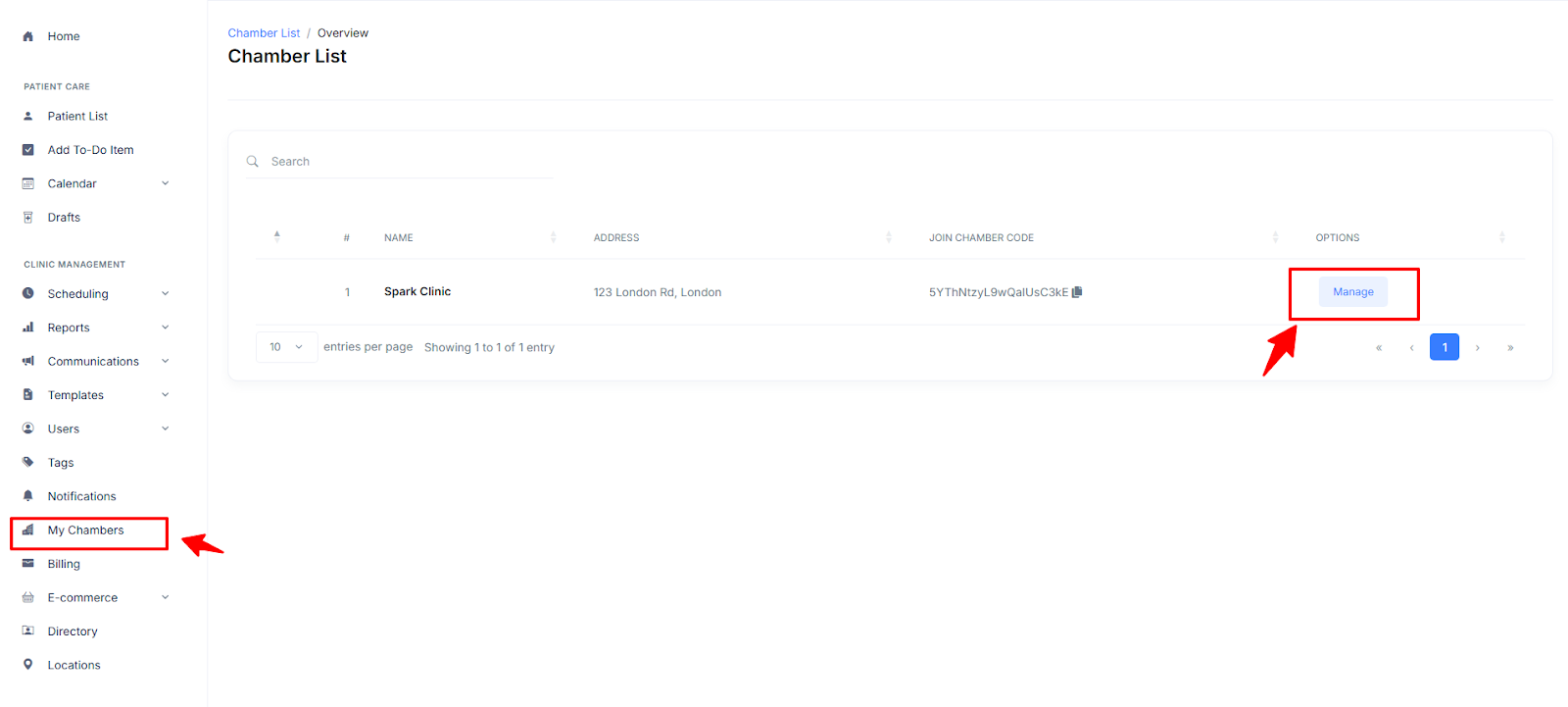
- To configure the sign-up form on your website to collect care provider information or Primary contact information , first navigate to "My Chambers," then select "Manage chamber" under "Clinic Management."
- You will find the 'Patient sign up form settings' section here. Here you can toggle on and off which information you would like to collect.
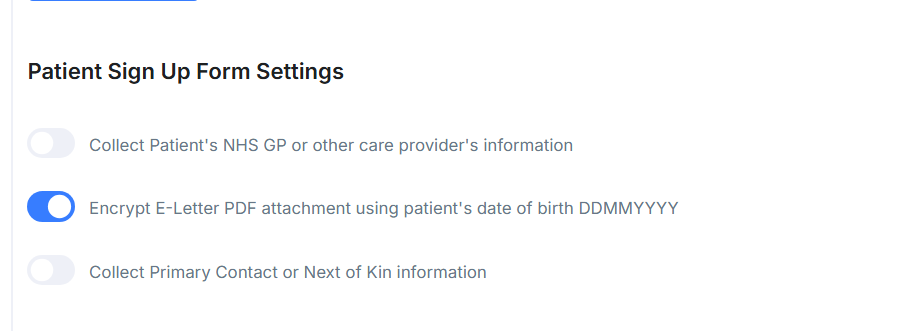
You can include information such as care provider details or primary contact information. An example of how both appear on the patient sign up form are shown below.
 (care provider details)
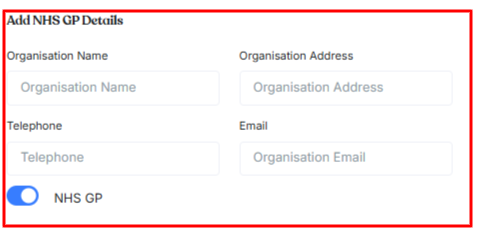
- When collecting care provider information is enabled, upon patient sign up patients have the option to toggle off âNHS GPâ, when this is done, the patients care provider information is not automatically listed as their NHS GP on spark clinics system. This is useful if a patient wishes to add other medical care providers e.g a care home.
Primary contact information
You can configure the patient signup form to collect a patient's 'primary care contact' during sign up. This will be automatically saved in the patient's profile.
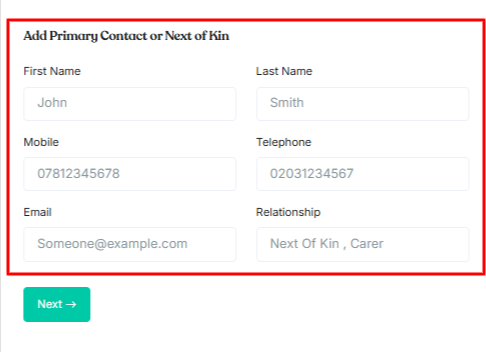
- When primary contact/ next of kin is enabled patients simply have to fill out this section (above) and once the form is completed this will be automatically saved onto their record in the Spark Clinic system.
Embedding The Patient Signup Form Onto Your Website (Advanced)
If you wish to display the patient signup form directly on your website, you can achieve this by using the embed HTML code that we provide to you. This will allow you to maintain full brand control and patients do not have to leave your site.
- Go to Clinic Management, then to scheduling where you will find the drop down 'Services'.
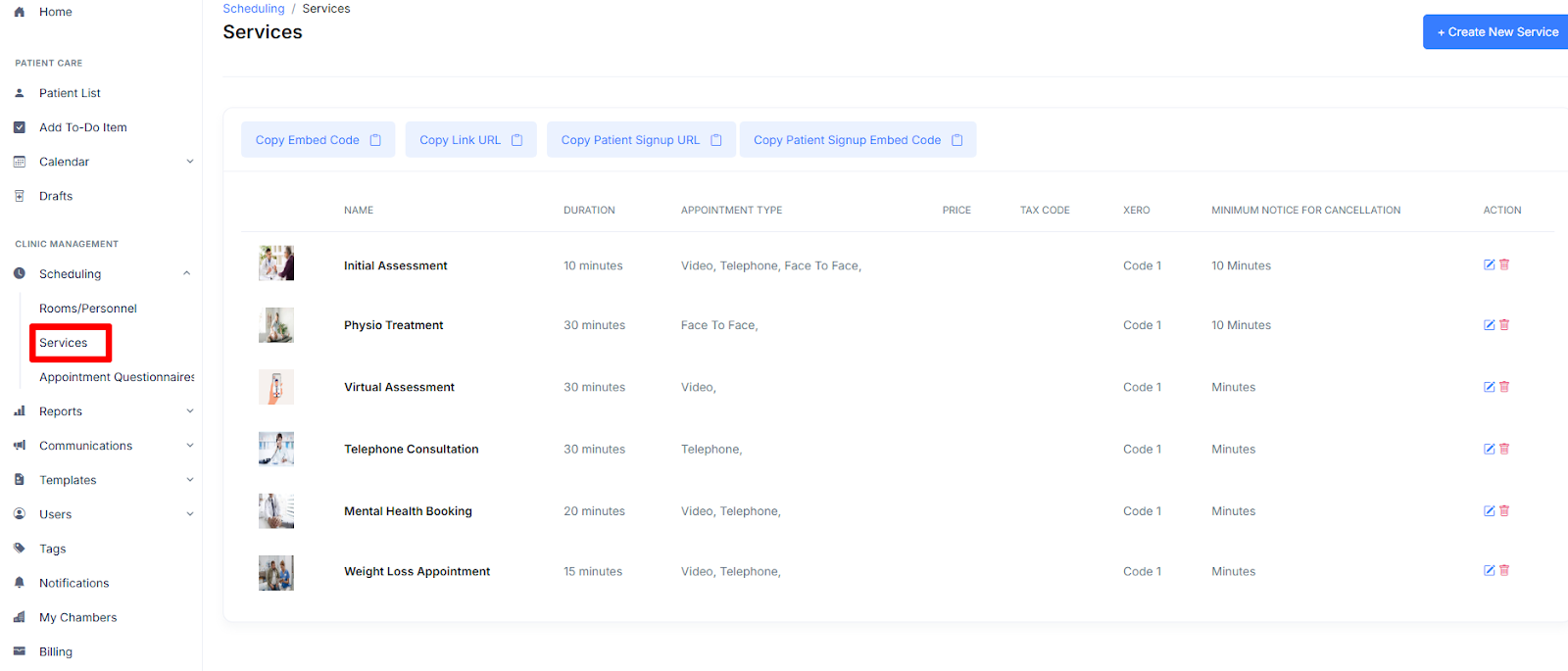
- Select 'Copy Patient Signup Embed code'.
 .
.
- Paste the code you just copied into the of your website (this task must be carried out by your website editor).
- Your signup form should now appear on your website.