
Getting Started
Thank you for considering using spark.clinic as your new practice management system.
Sign Up
To Sign up, go to spark.clinic and select the âQuick Sign Upâ button.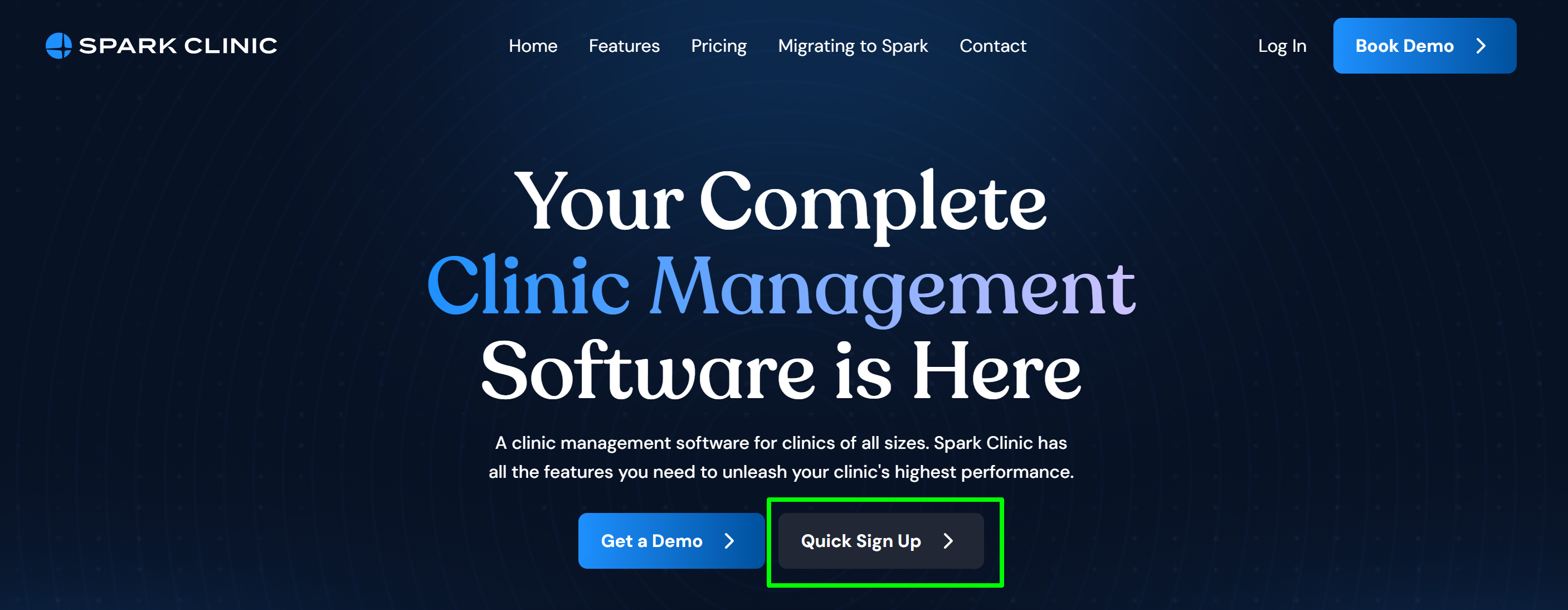
This will open a pop up where you need to enter all the requested information.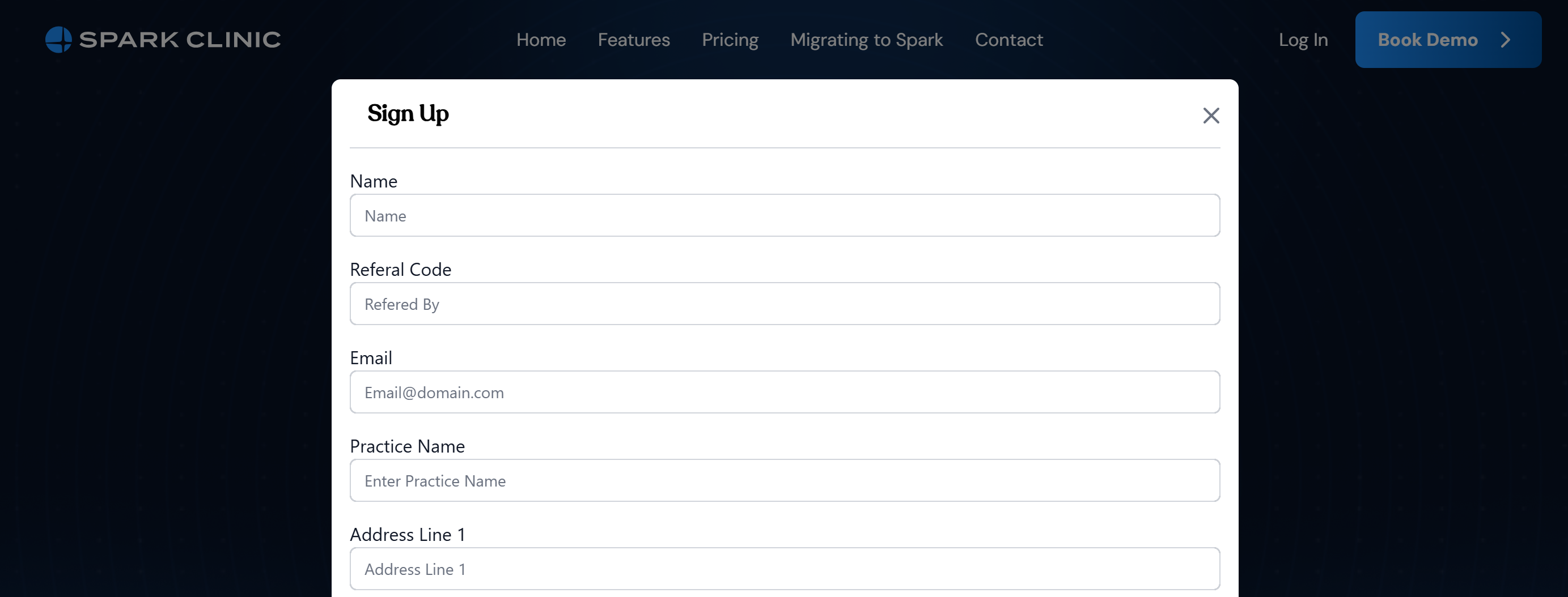
Once we receive your sign up information, we will contact you with the next steps on how to use your account.
This will include an onboarding call, a way to migrate your data to spark.clinic (optional) and any further information you may need regarding using our system.
Book a Demo
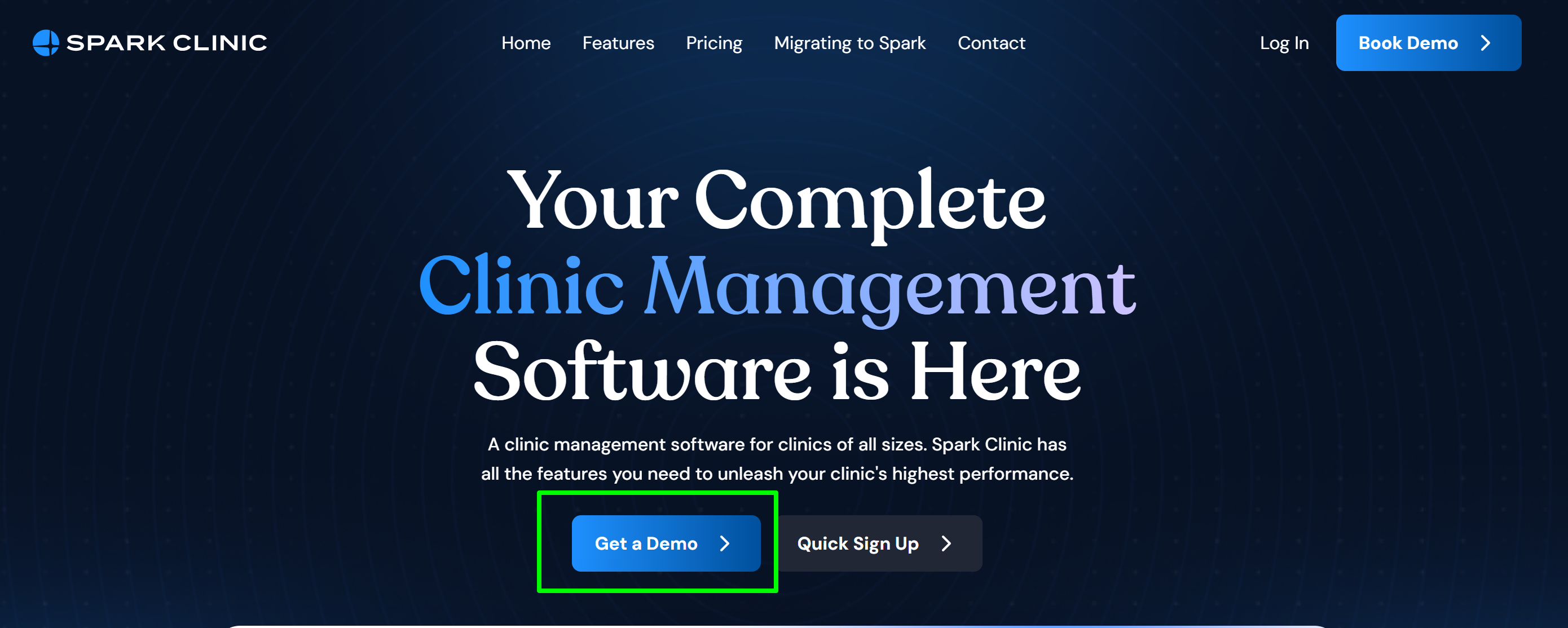
- To book a demo, please select the Get a Demo or Book Demo button at https://spark.clinic/
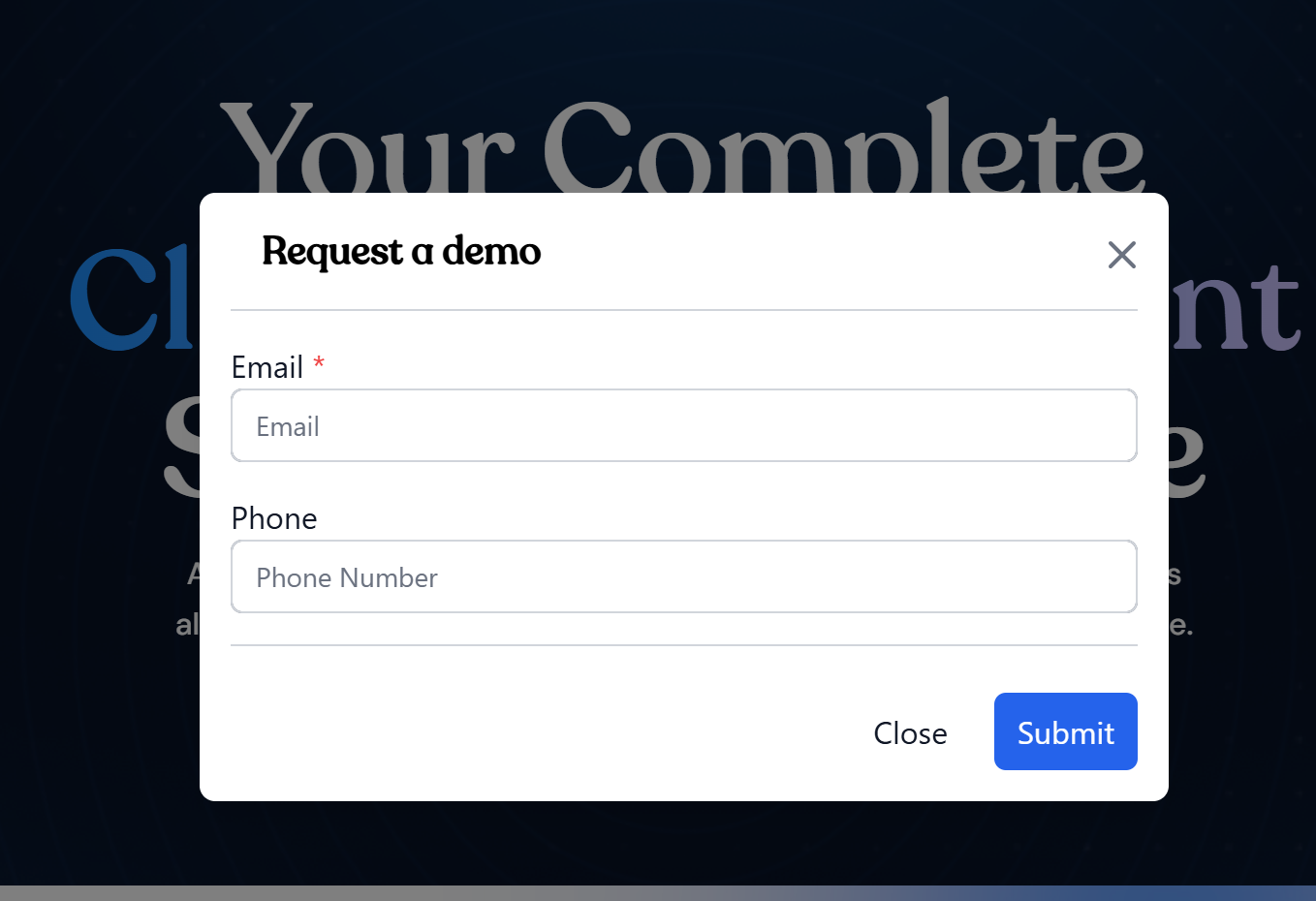
- Add your name and phone number and then select submit.
- You will receive a link which allows you to select a time convenient for you to do a demo. Once you select this time, it will be saved in your calendar and we can look forward to having a video call with you.
Login
To log in to spark.clinic:
- Go to https://spark.clinic/login
- Enter your login email and password. If you would like your computer to remember your email, please select remember me.
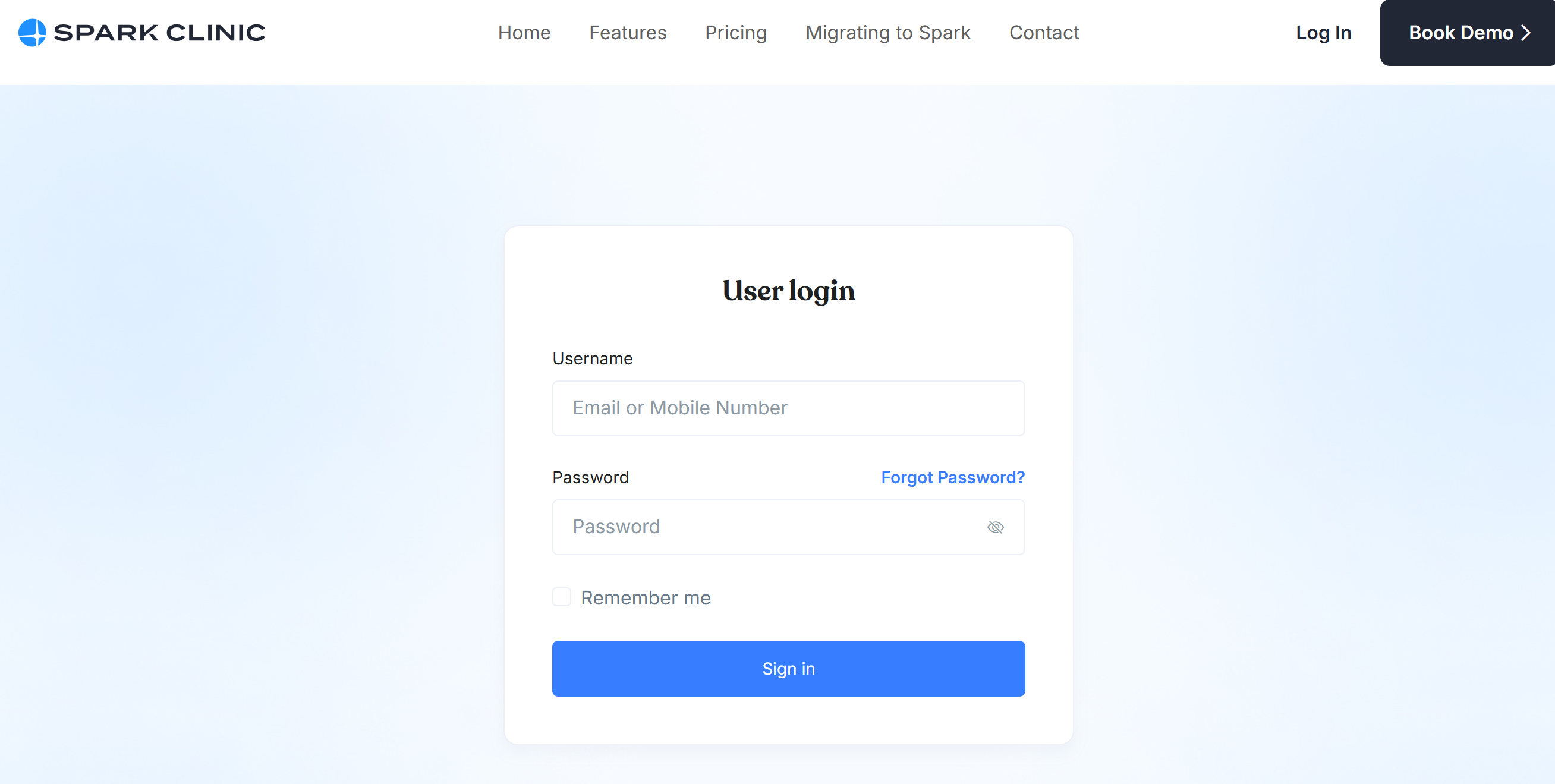
- Click the Sign in button
- Choose whether you would like to get your security code sent to your email or as an SMS message to your phone, and then press send code.
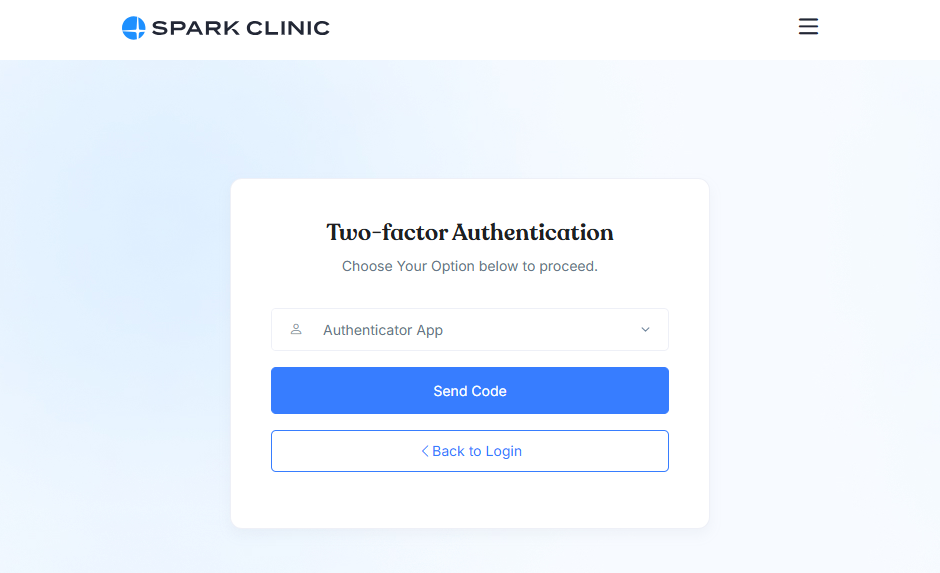
- Enter the 6 digit security code that will be sent to your email or phone, and click log in.
You are now logged in to Spark Clinic.
Authenticator App
Authenticator apps offer a more secure form of two-factor authentication (2FA) compared to SMS or email-based methods. Authenticator apps generate time-based one-time passwords (TOTPs) directly on the user's device, making them less vulnerable to remote attacks. Though slightly less convenient than receiving a code via text or email, authenticator apps provide a stronger defense against phishing and unauthorized access.
Setting Up
- Download an authenticator app, if you do not already have one on your device. Google Authenticator, Microsoft Authenticator and Authy are examples of popular authenticator apps.
- Login to Spark and visit your profile by clicking your user icon and selecting the âProfileâ button
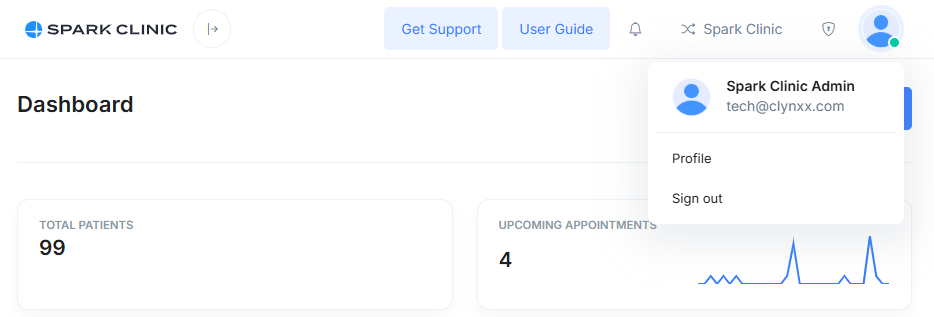
- Scroll down and toggle the âEnable Authenticator Multi-Factor Authentication (e.g. Google, Microsoft, Authy app etc)â switch

- Open your authenticator app and scan the QR code displayed on the Spark website
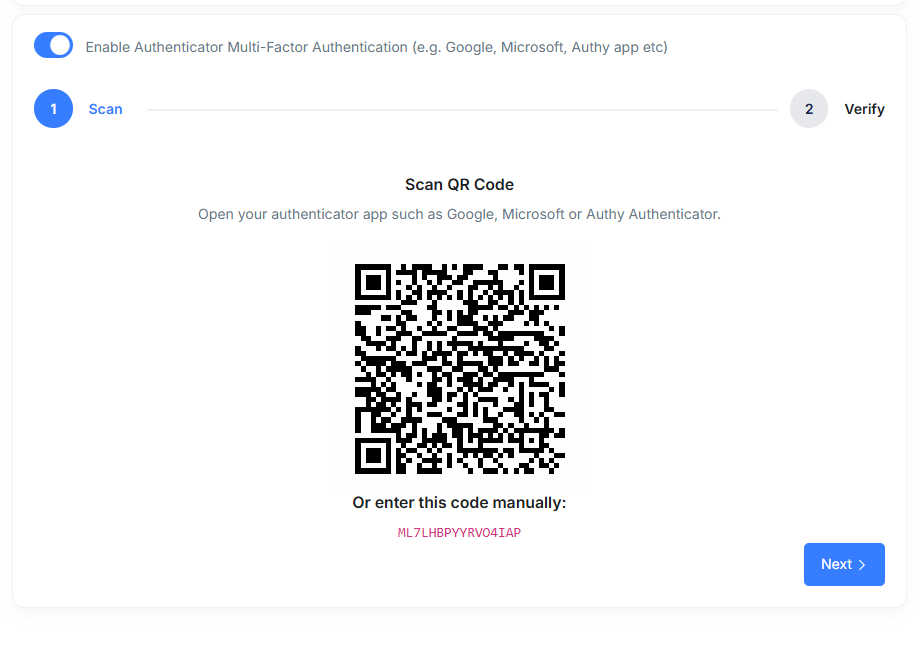
- Upon scanning, Spark will be added to the list of codes displayed in your authenticator app.
- Click the âNextâ button which will take you to the âVerifyâ page where you will be prompted to enter the code from the Authenticator app.
- On the âVerifyâ page, enter the code in the section shown in the image below
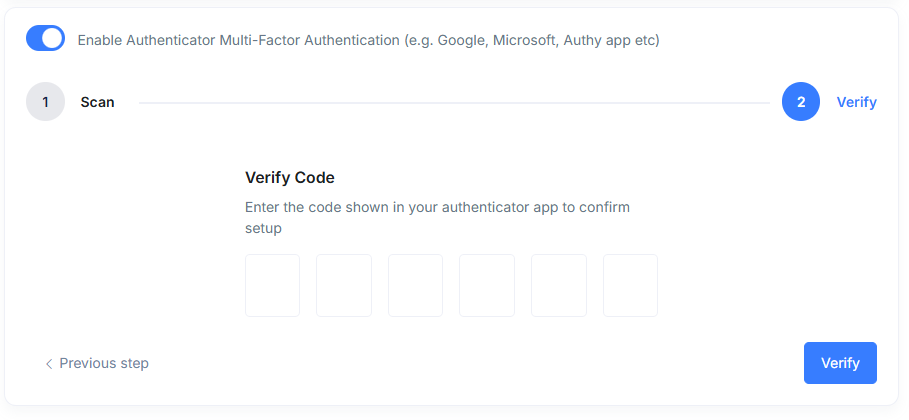
- Once the code is successfully verified, you can now use the authenticator app for 2 factor authentication during login by selecting the âAuthenticator Appâ which will be the default selection after enabling Authenticator App
Logout
- You can log out of spark by selecting the icon at the top right of the screen.Â
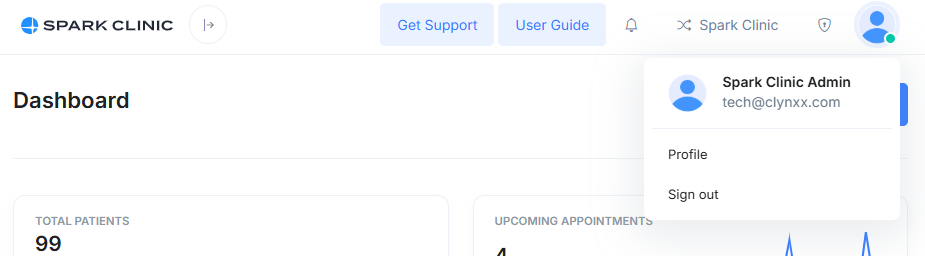
- Select 'Sign out'.
- You are now signed out of Spark Clinic.
Locked Out
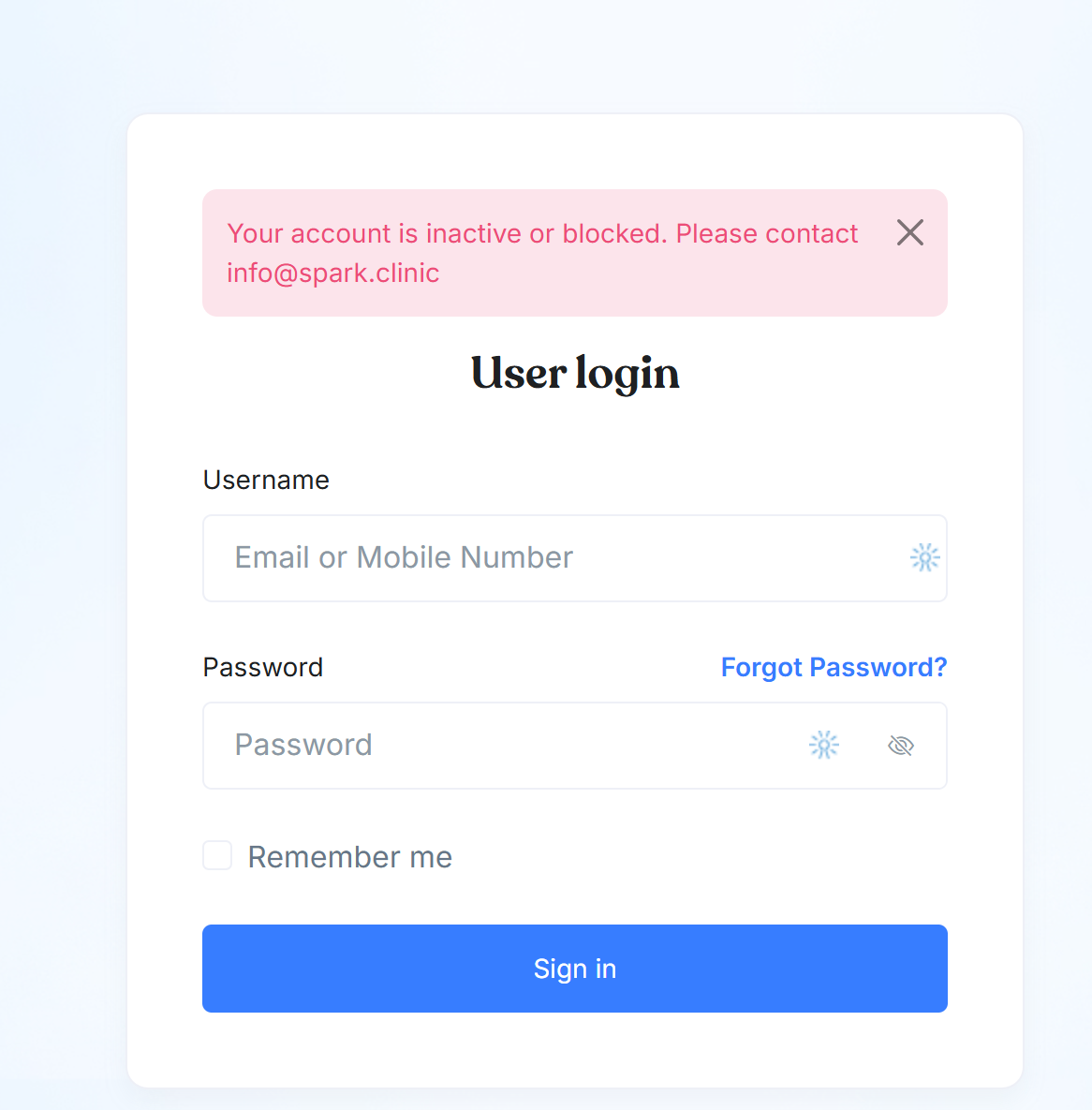
If an account registers more than 10 unsuccessful login attempts, it will be temporarily blocked as a security precaution. To regain access, the user must contact the system administrator and complete an identity verification process. This measure is in place to protect user accounts and ensure system integrity.