
Appointments
Creating An Appointment
Note that you can only book an appointment only after a Practice Manager/Medical Officer has set up a Resource/Room and a Service.
How Do You Book An Appointment?
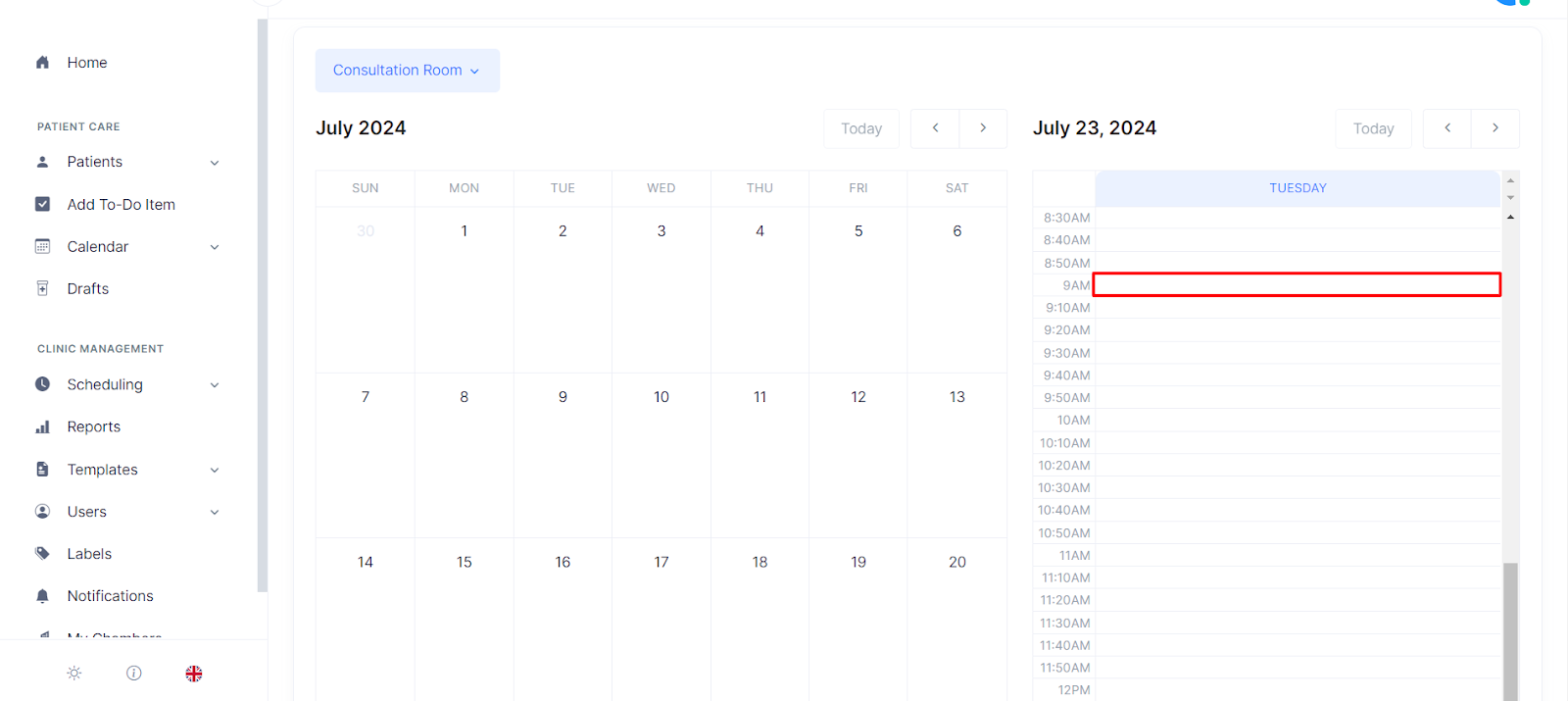
- To create an appointment in Spark Clinic, if you are assigned to a room for appointments select the âCalendarâ tab under Patient Care, or click on the calendar at the time which you would like the appointment on the home page.
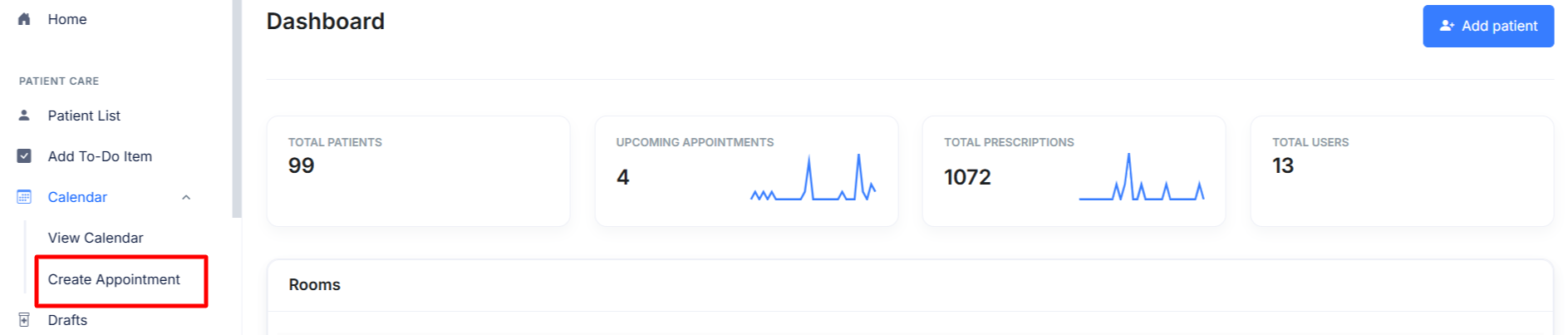
- Alternatively for all other staff, select âCreate Appointmentâ under âCalendarâ, under âPatient Careâ.
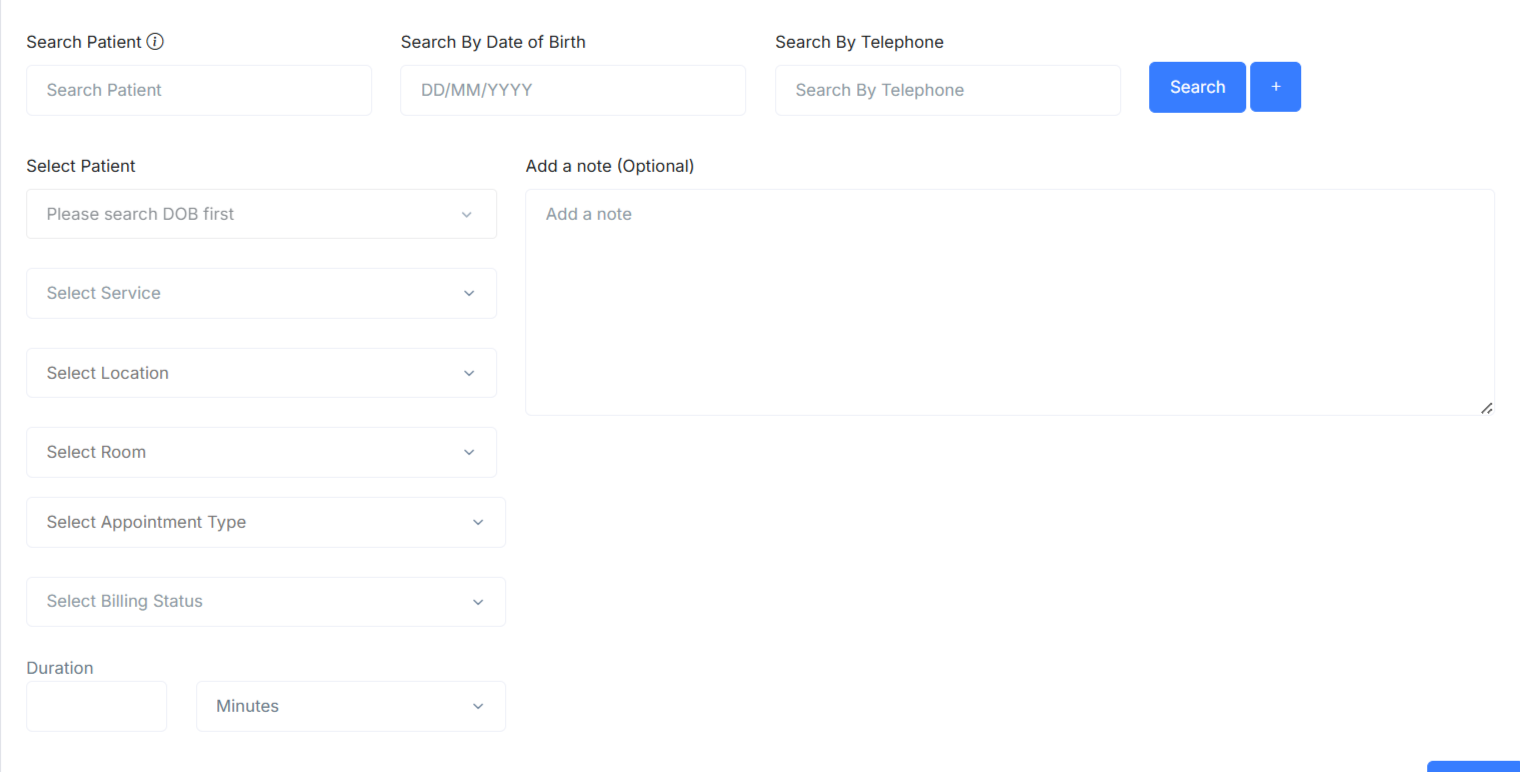
- Fill in all the required information and select âNextâ. (To create a video appointment, select the appointment type as "Video").
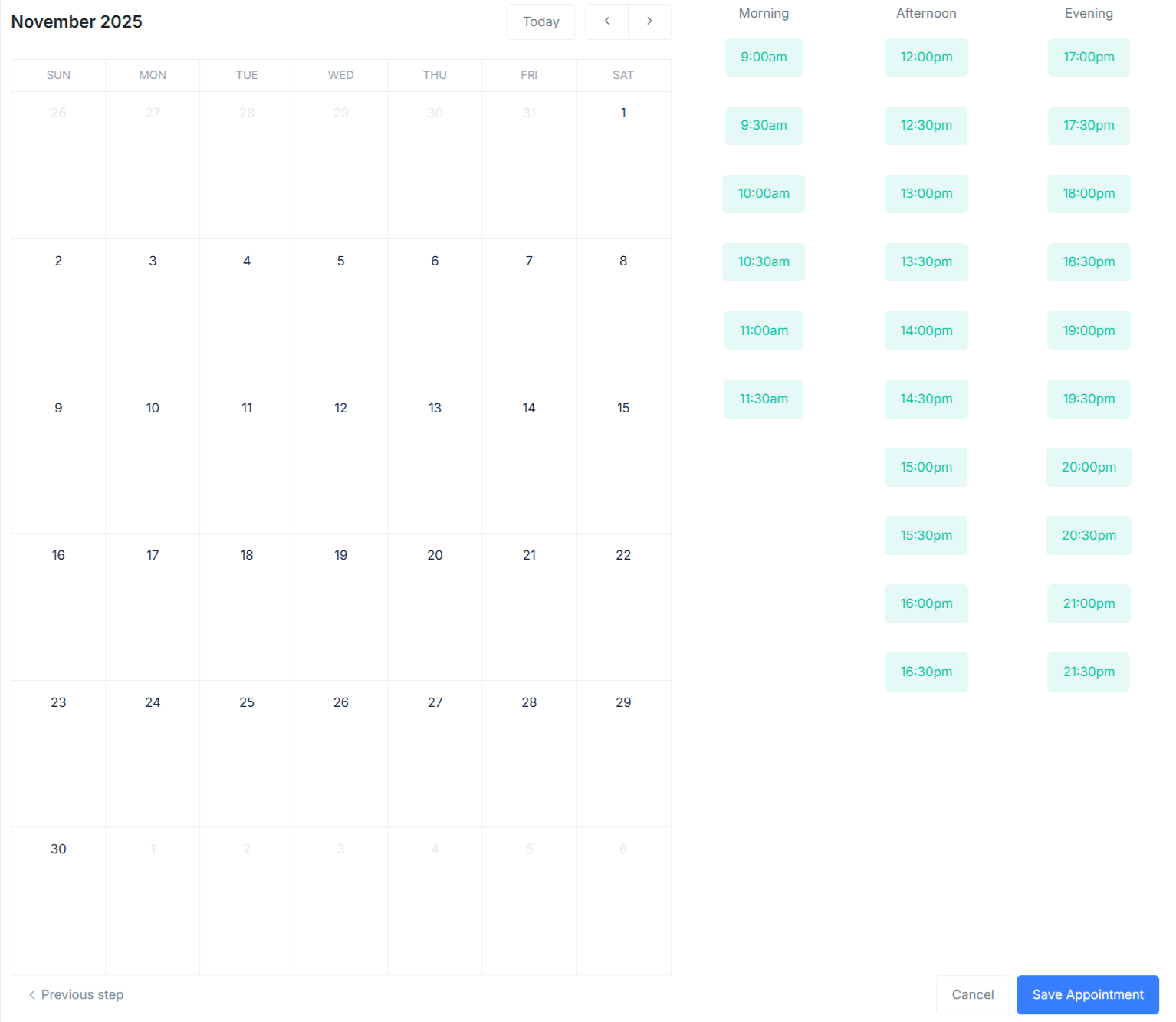
- Now select a date and a timeslot.
- Save the appointment by clicking the button at the bottom of the page.
- Once the appointment is saved, an email will be sent to you and your patient.
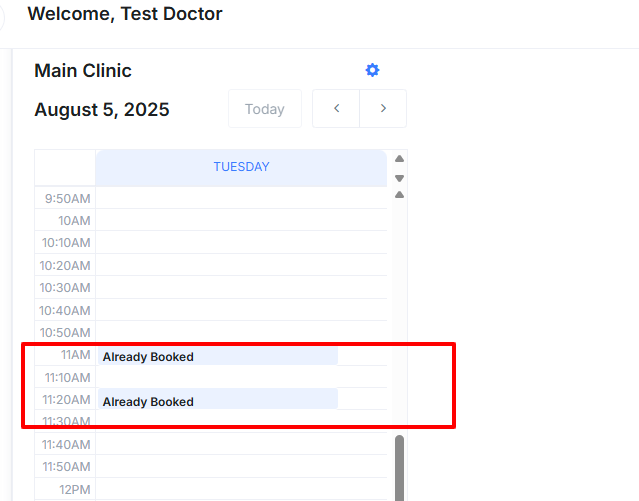
- Please note that our system will not allow you to book overlapping appointments, The Spark Clinic calendar will show a placeholder entry 'Already Booked' if the synced calendar has a booking from elsewhere.
Tips:
- You can add notes to the appointments during booking.
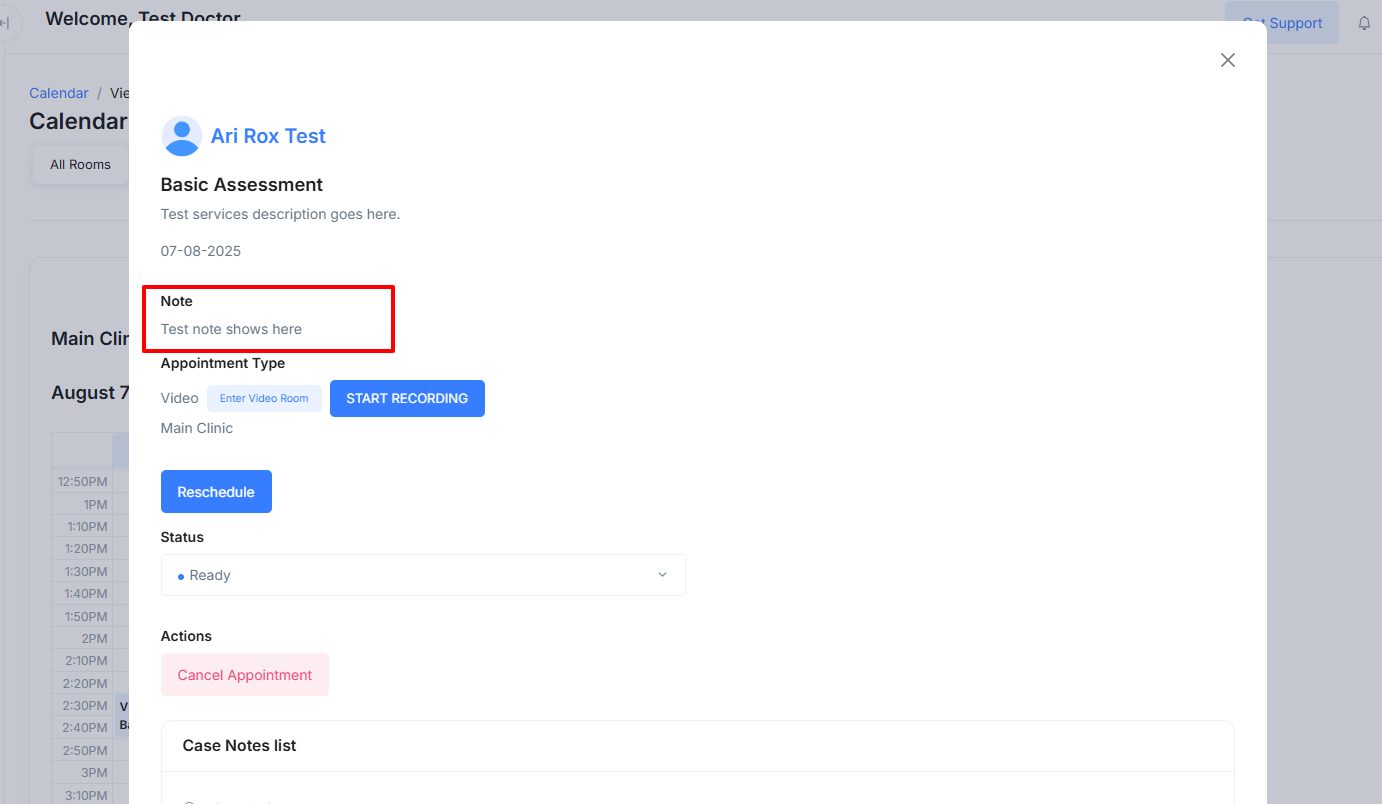
- You can also access the appointments from the home page.
- To reschedule an appointment, simply select the desired appointment on your calendar and choose the "reschedule" option. You can then change the time and date as needed.