E-Letters
Within Spark.Clinic, you can create and send electronic letters to patients, these letters are automatically sent in PDF format. PDFs formats are useful for official letters such as sick notes or letters to other stakeholders which require certification.
A copy of the PDF letter is also stored against the patient's profile in your Spark Clinic account.
How Do You Create A New Letter?
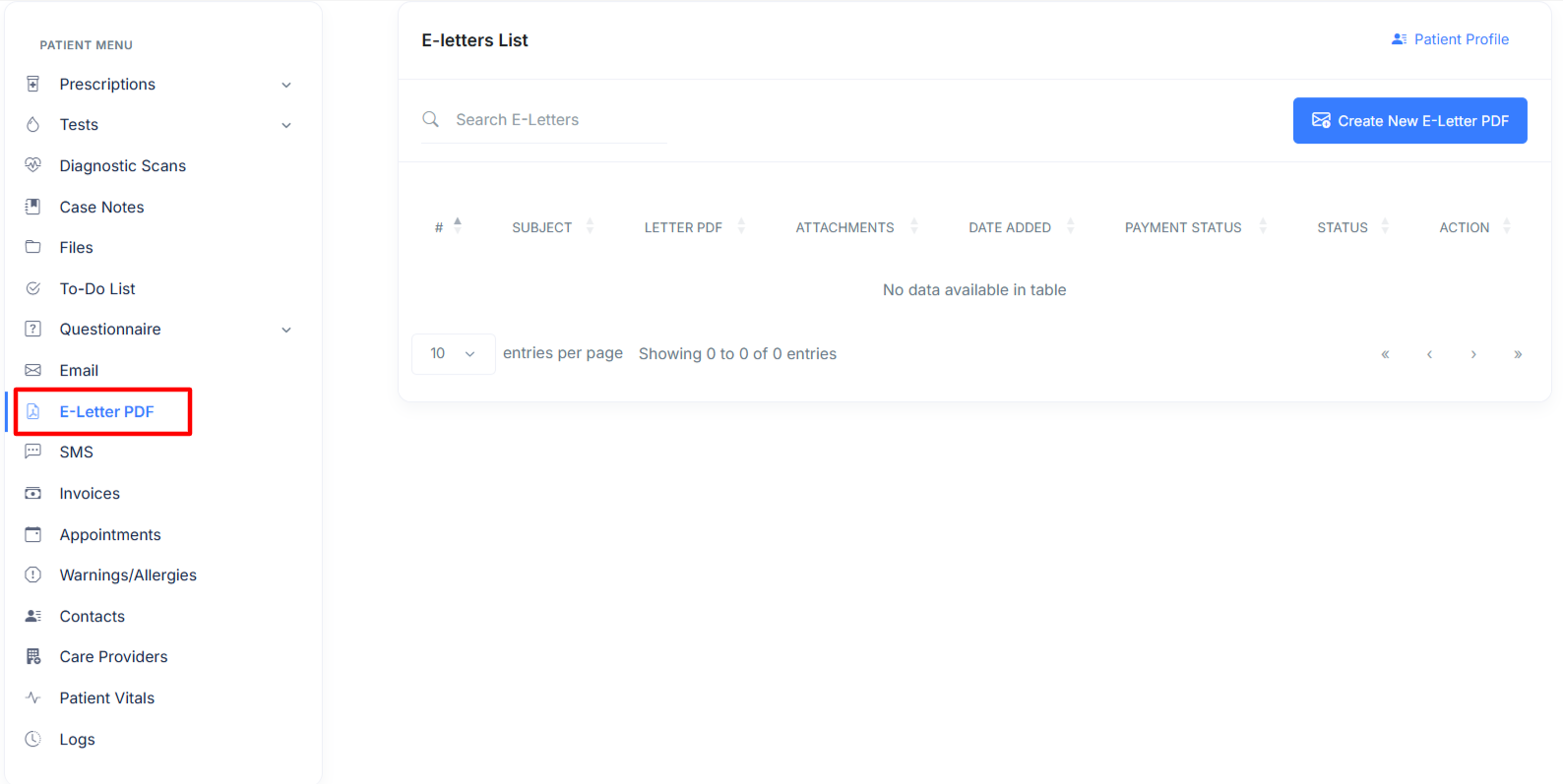
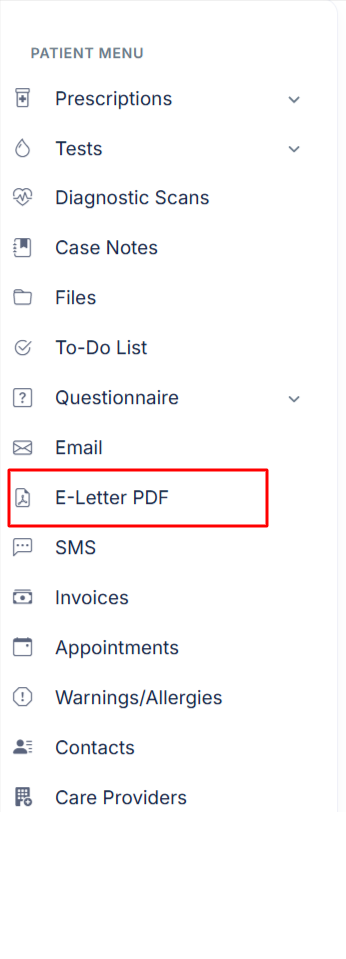
- To create a new letter, go to a patient's profile, then select "E-Letter PDF"
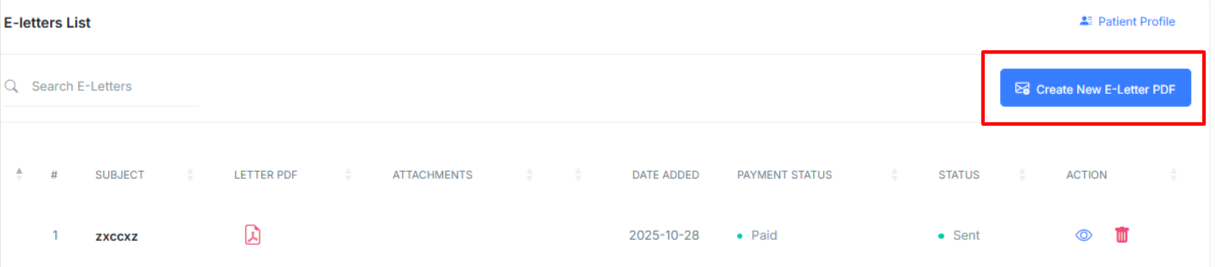
- Next select "Create New E-Letter PDF" on the top right of the screen.
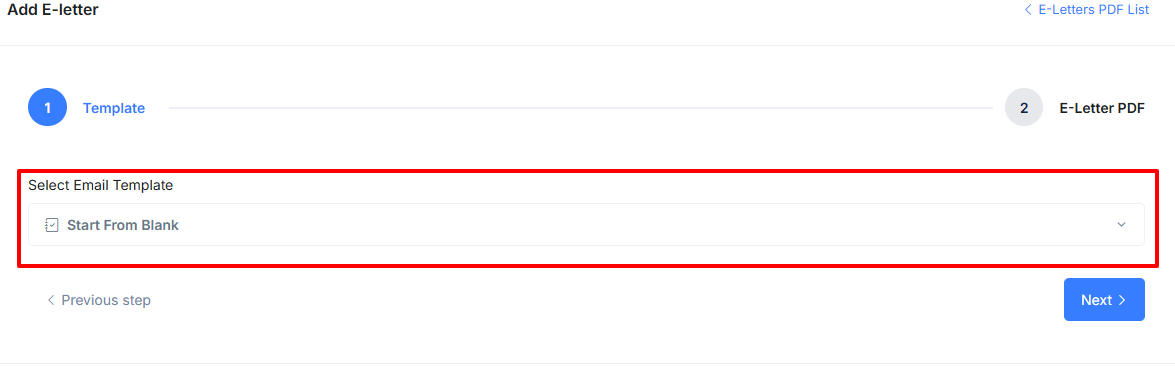
- Select a pre-made letter template, or start a new letter from scratch, then select next.
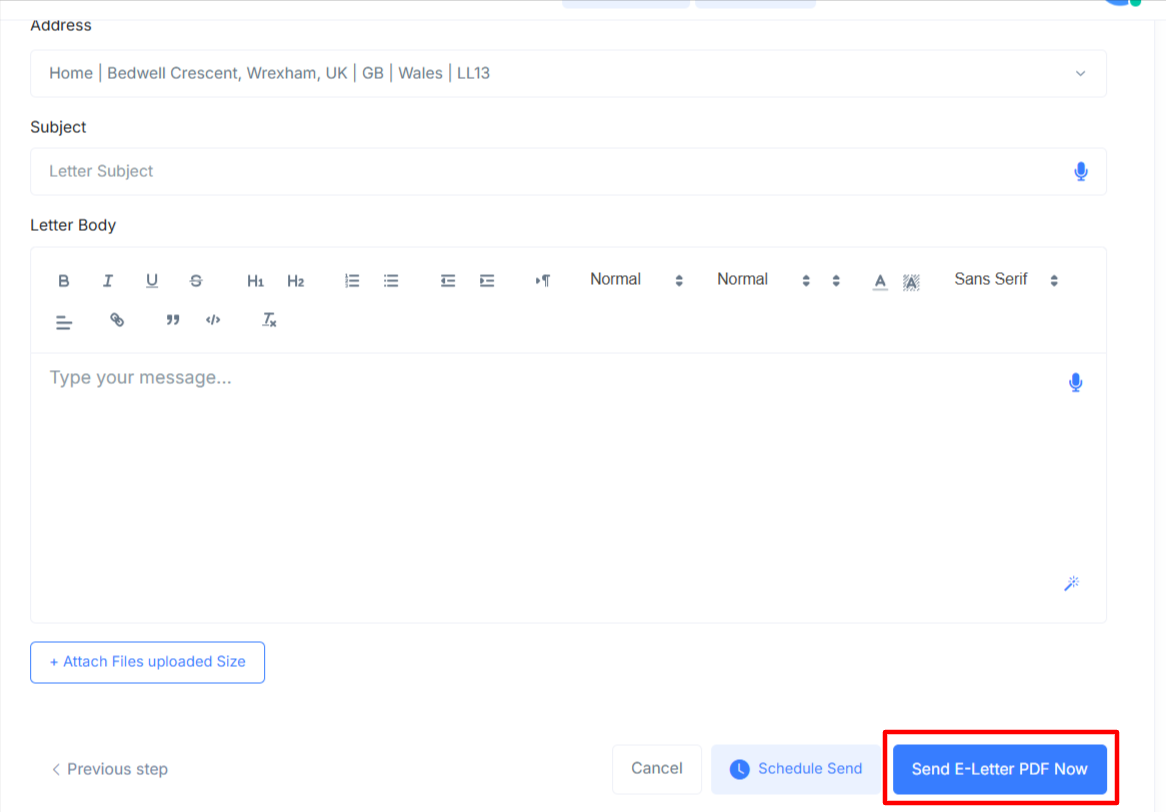
- Add recipients, select the correct address, enter the subject and edit the letter body.
- Attach any files you would like to the letter by selecting the + Attach Files Uploaded Size button.

- Select "Send E-Letter PDF Now" once the letter has been reviewed,the letter will be directly sent to the patient in PDF format.
Encrypting e-letter PDFs
Spark Clinic enhances privacy by allowing you to automatically encrypt PDFs using the patient's date of birth.
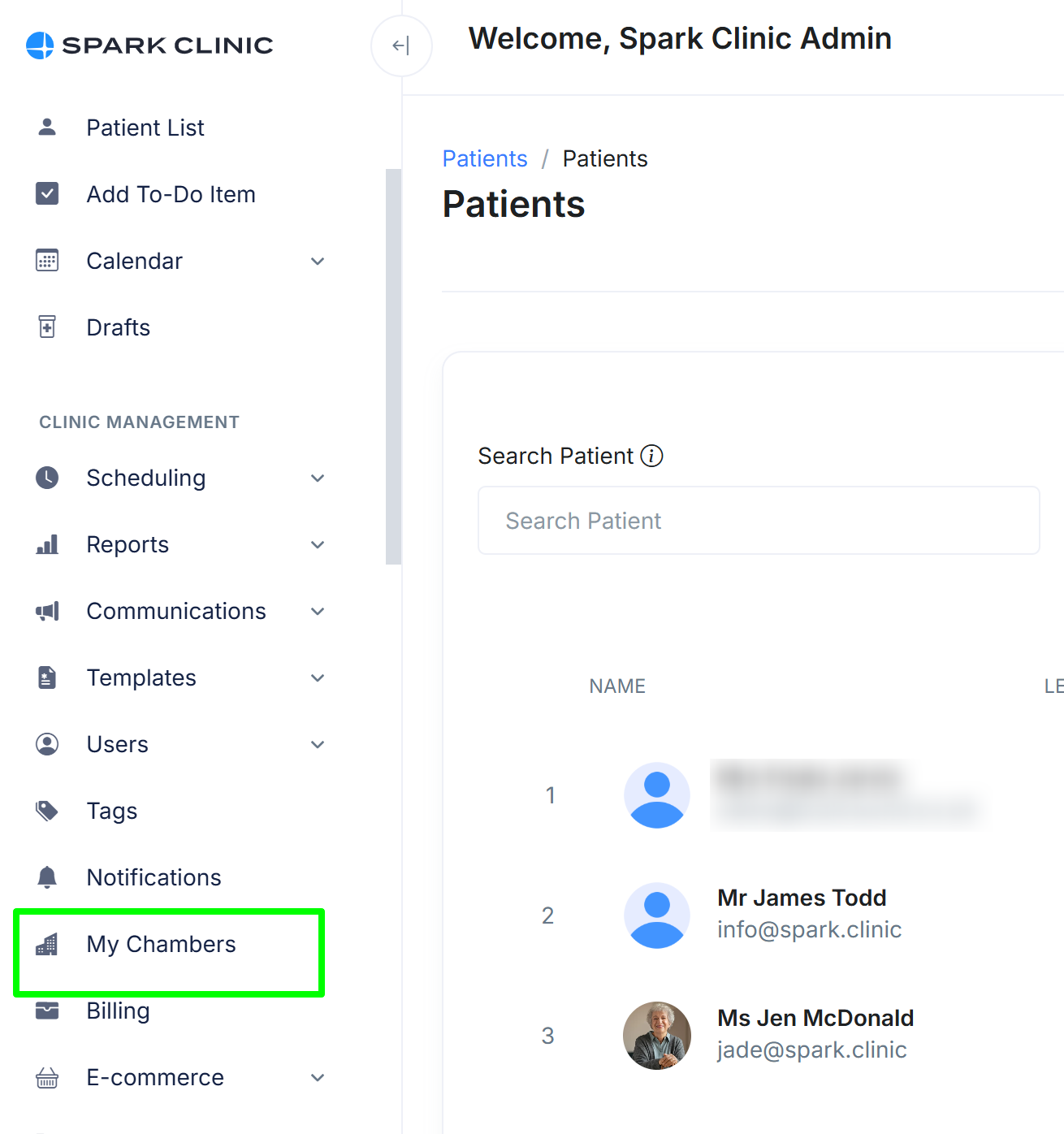
To enable auto PDF encryption go to the Clinic Management section of the main menu and select My Chambers
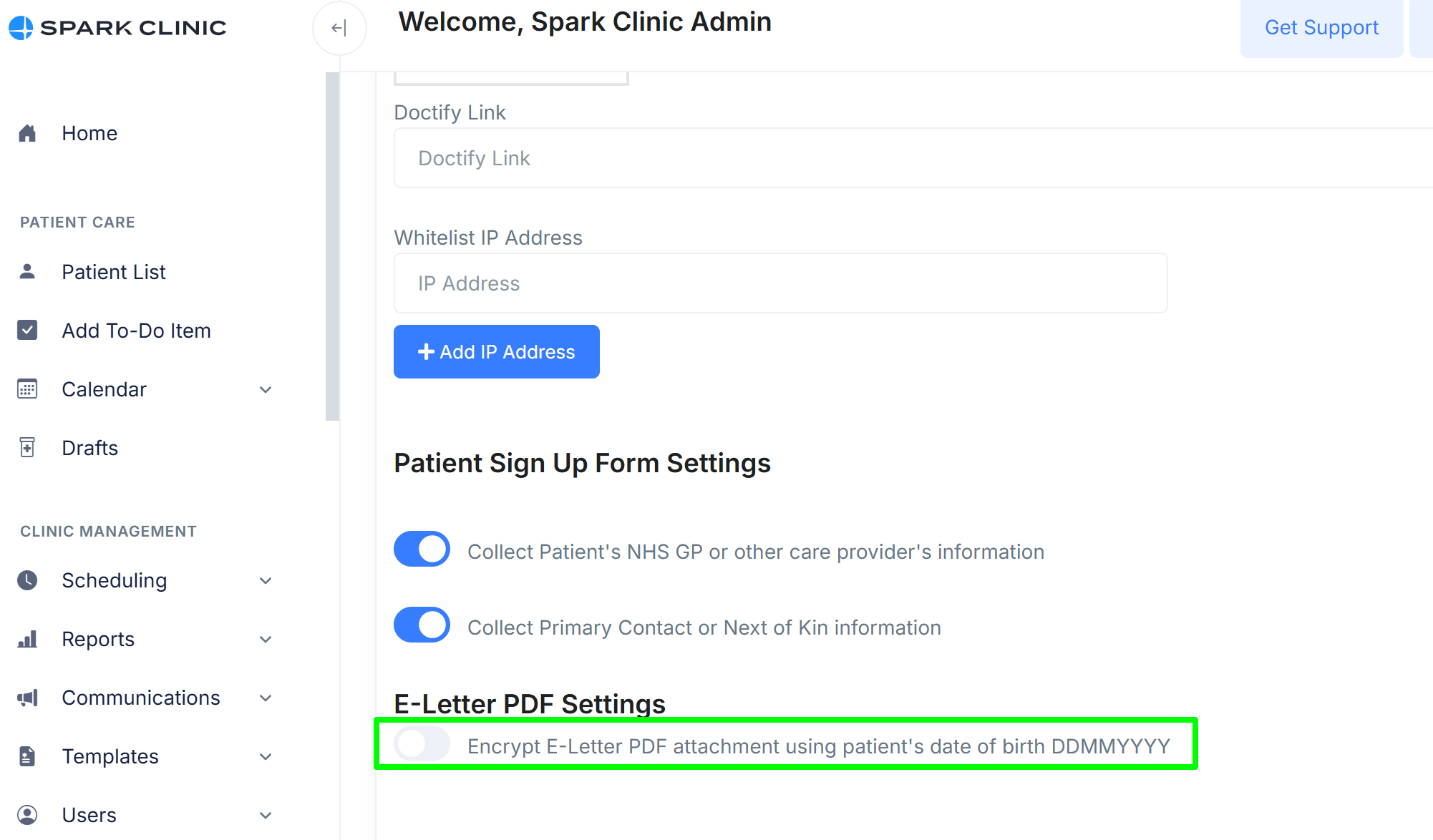
Select the chamber you want to edit and then enable the 'Encrypt E-Letter PDF attachment using patient's date of birth' setting.
Now each time you create an e-letter PDF, the document will be locked using the patient's date of birth as the code to unlock it. When attempting to open the document, the reader will be requested to enter the password and the document will only open when the correct password is entered.
Downloading Letters
A record of the PDF is also saved in the patient's profile so that you may retrieve a copy at a future date. To retrieve the document
- Navigate to the patient list and select the relevant patient.
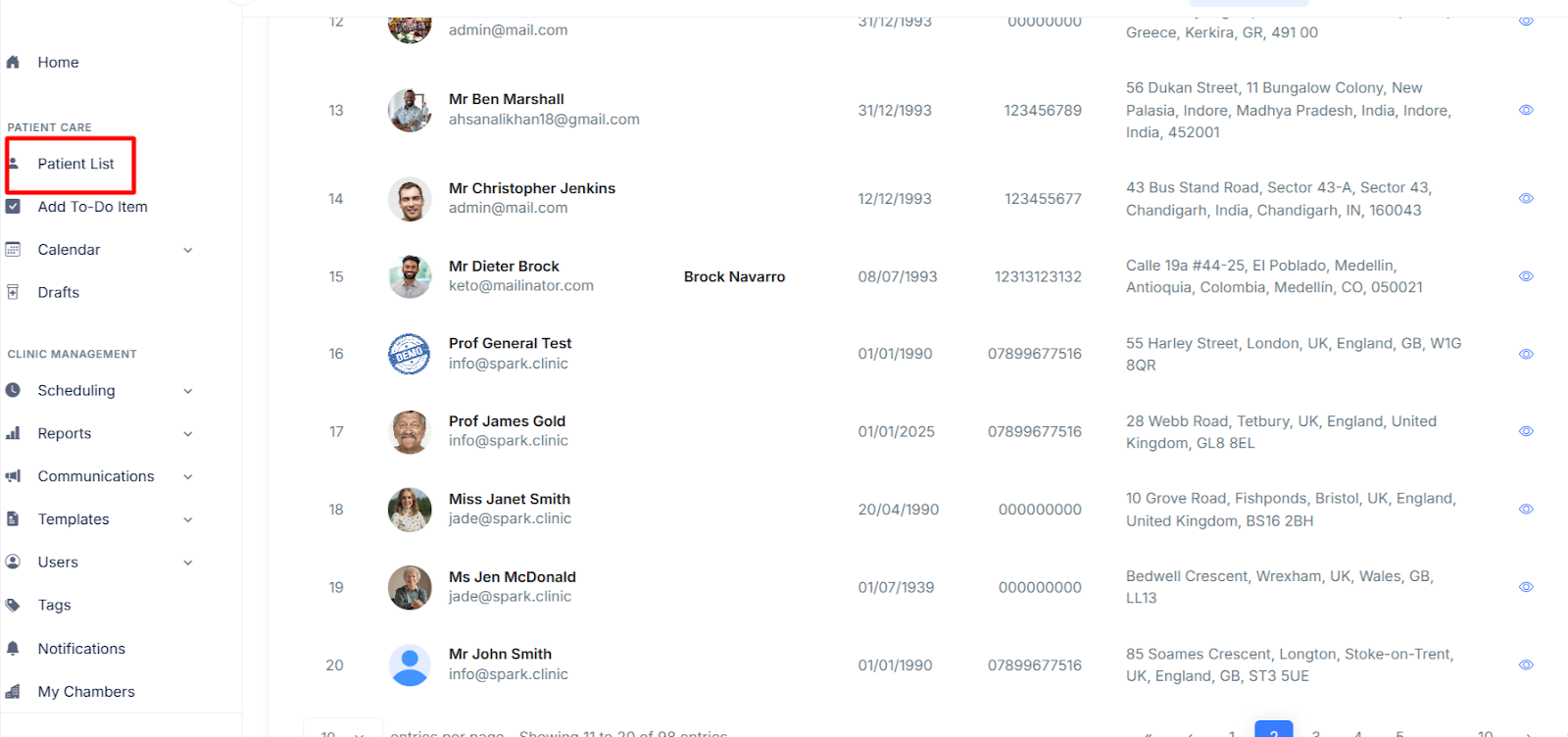
- Select âÃÂÃÂE-Letter PDFâÃÂàin the profile menu.
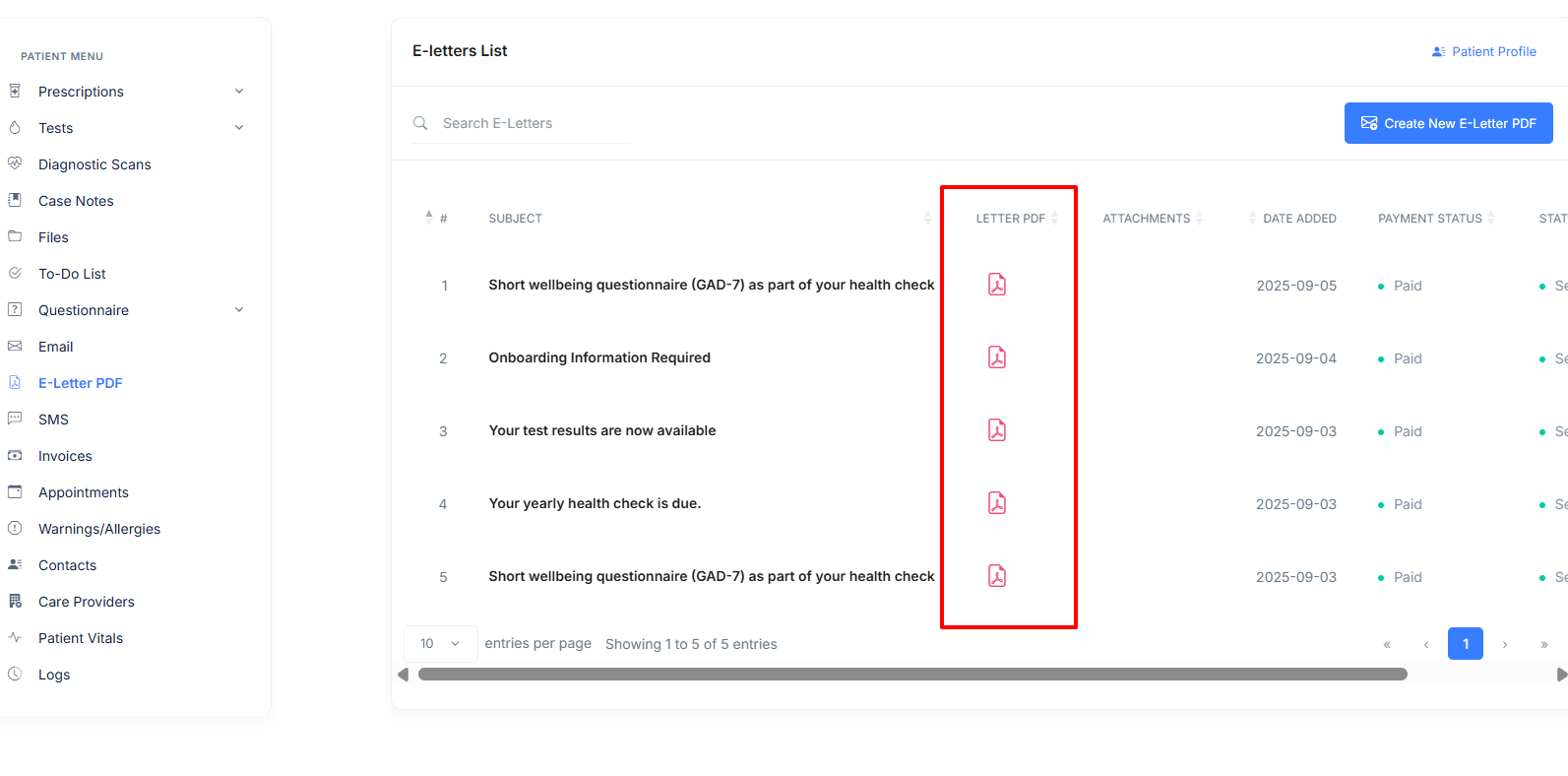
- This will display all letters you have sent to the selected patient, above this there is a section labelled letter PDF click the red file to download the desired PDF. (Please be aware that if you have E-Letter encryption toggled on in your clinic management settings, these documents will still require the patients DOB as a password)
- Next the letter will open in a seperate window where you can download or print the document. This is typically located in the right hand corner, however will vary depending on what software your computer uses to view PDF documents.
Creating Drafts
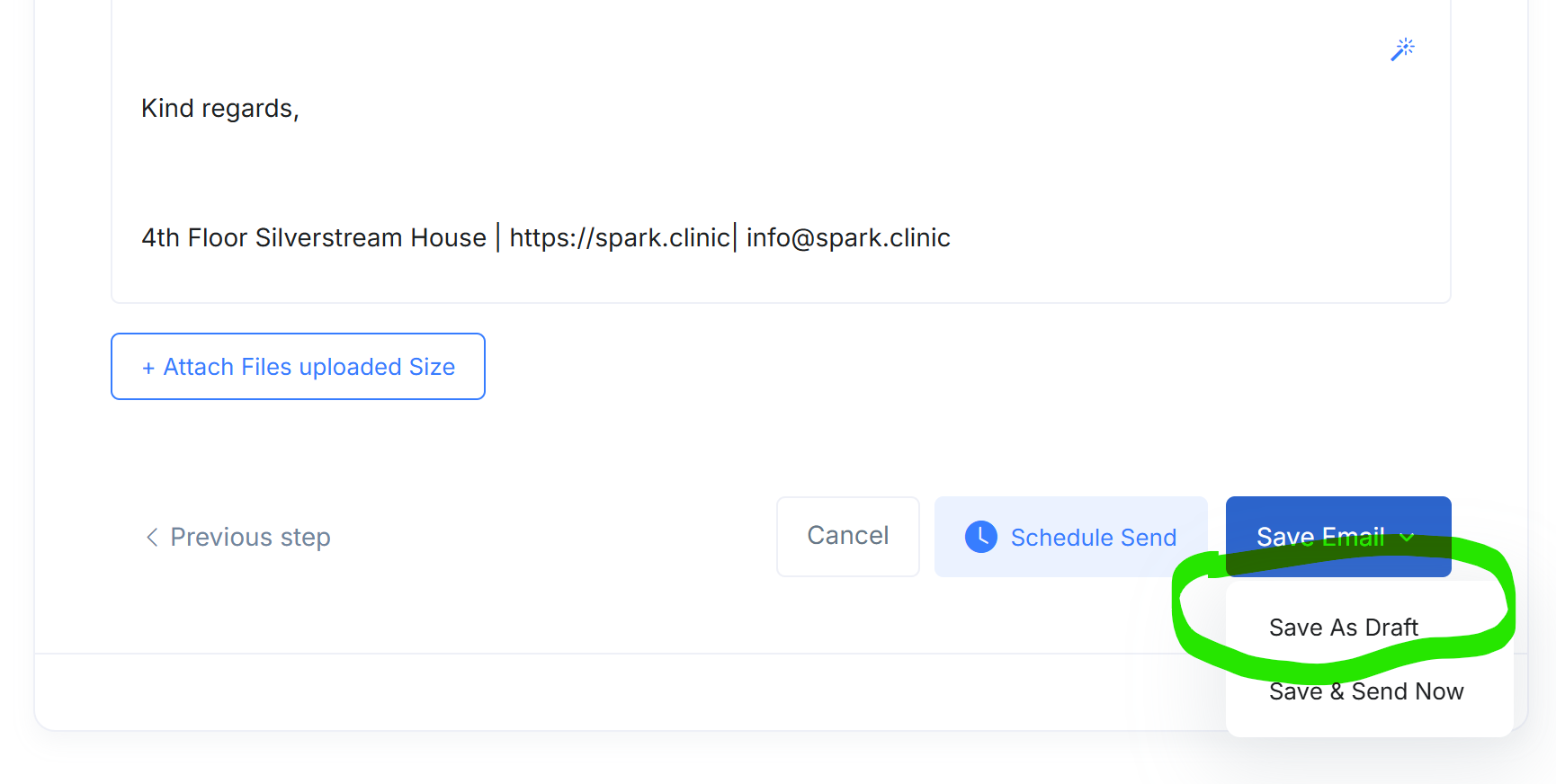
You can create a draft e-letter PDF so that you can come back in the future to edit/finalise and send. It is simple, click 'Save As Draft' and the e-letter will be saved as a draft .