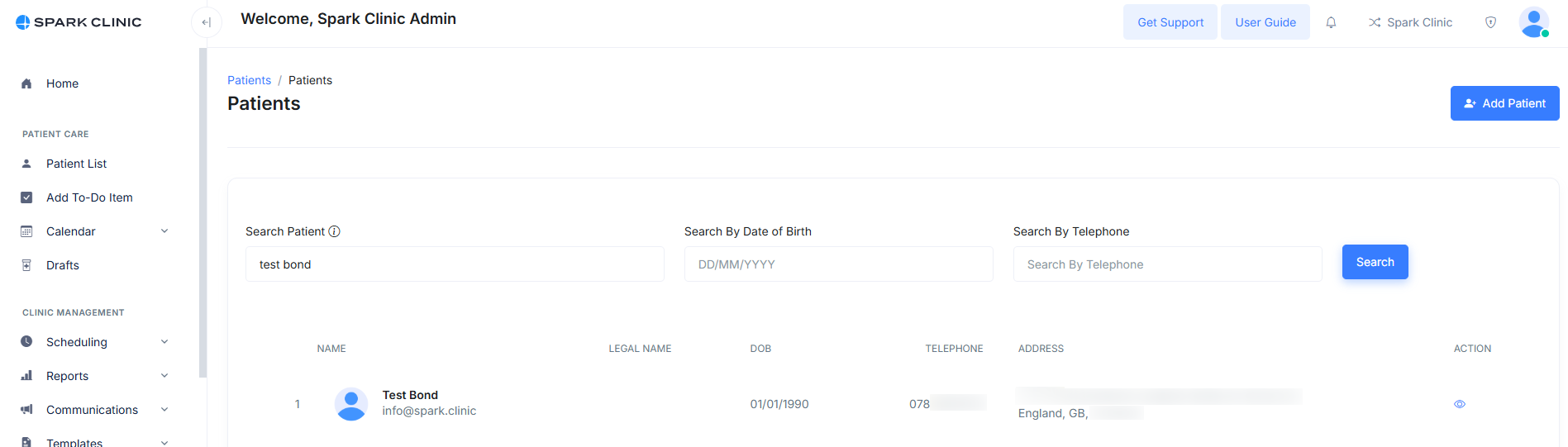
Patients
Spark Clinic offers several methods for adding new patients, including through the dashboard or directly from the patient list.
Adding A New Patient
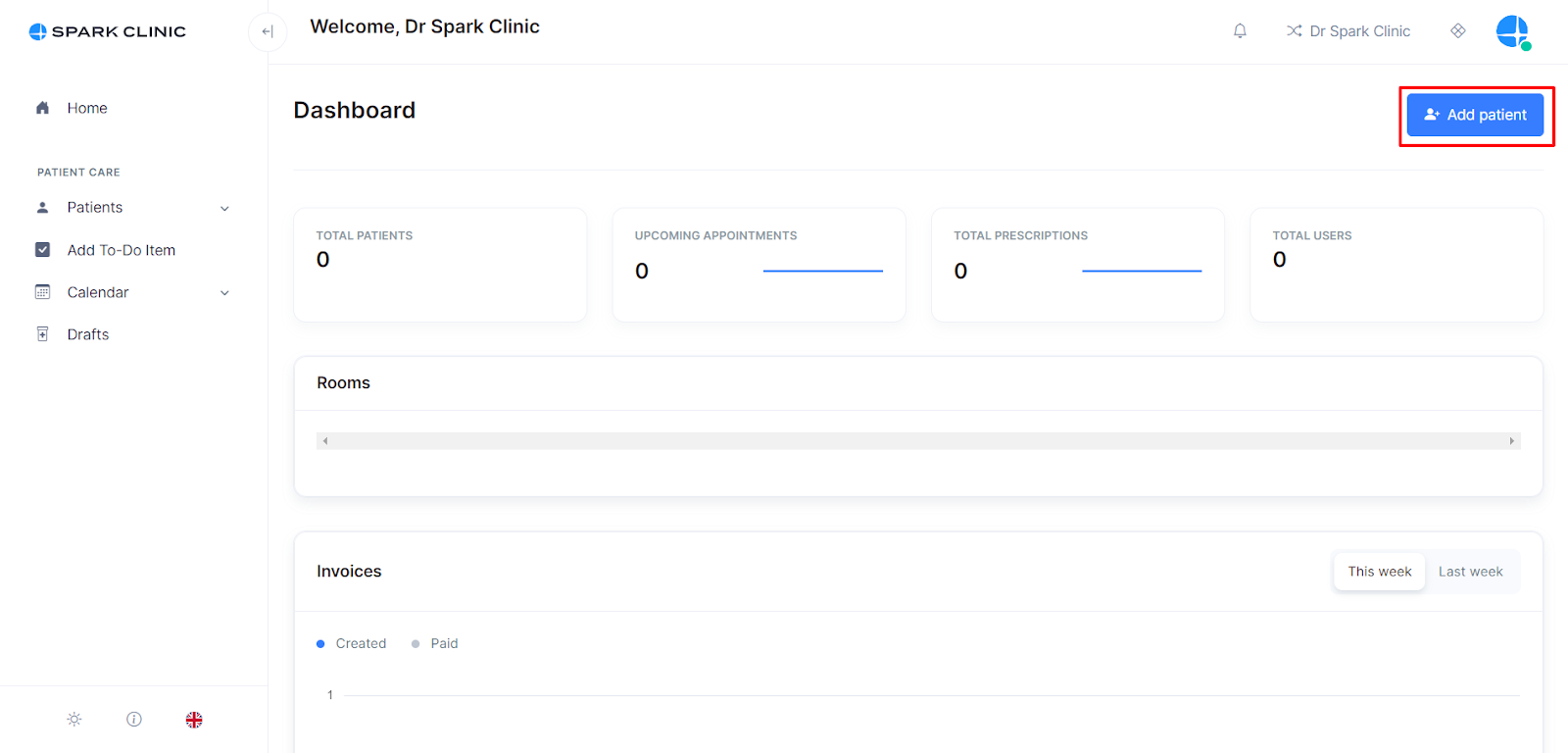
- The first and easiest way to add a patient is to select the "add patient" tab on the top right of the home page.
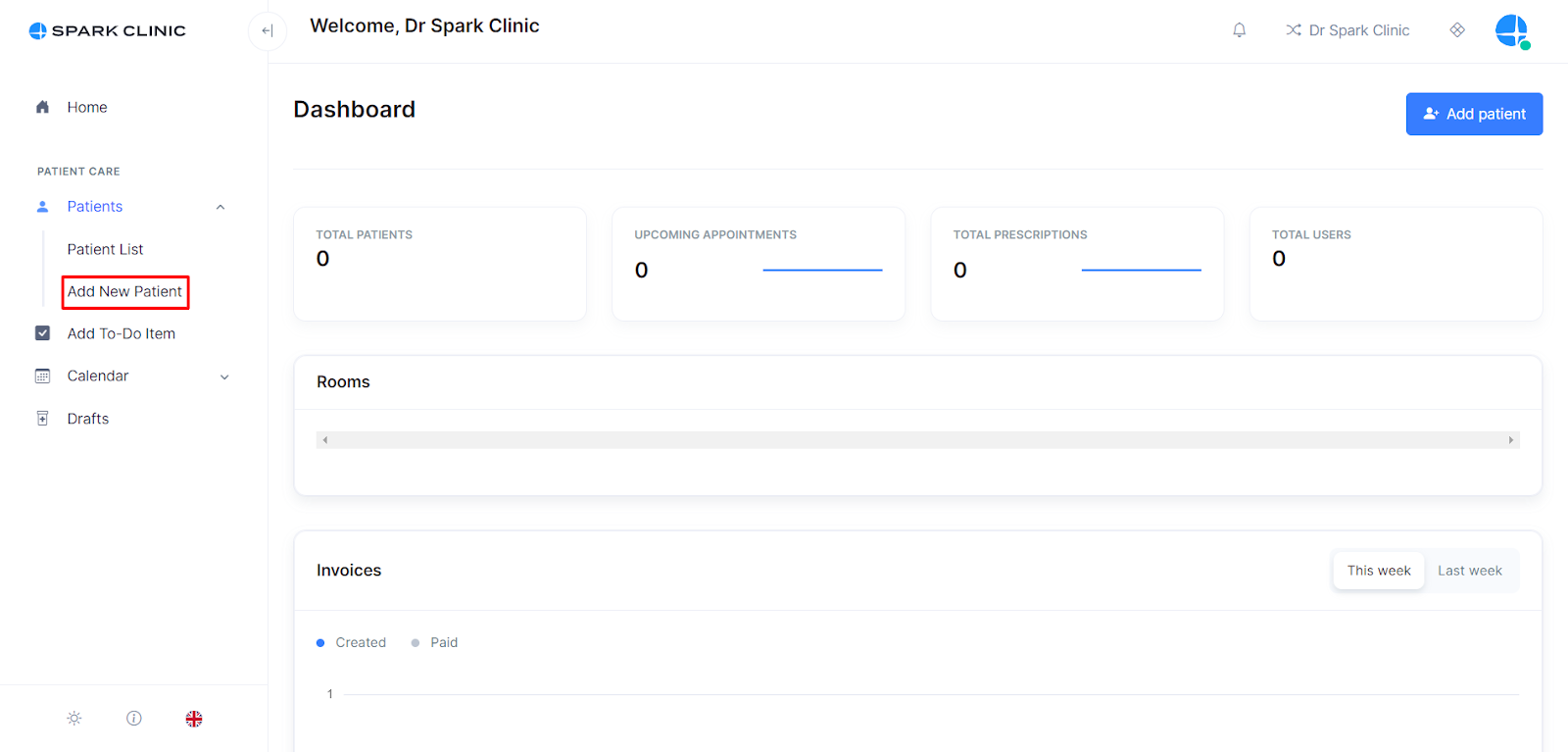
- Another way is to select patients from the side list and then Select âCreate new patientâ.
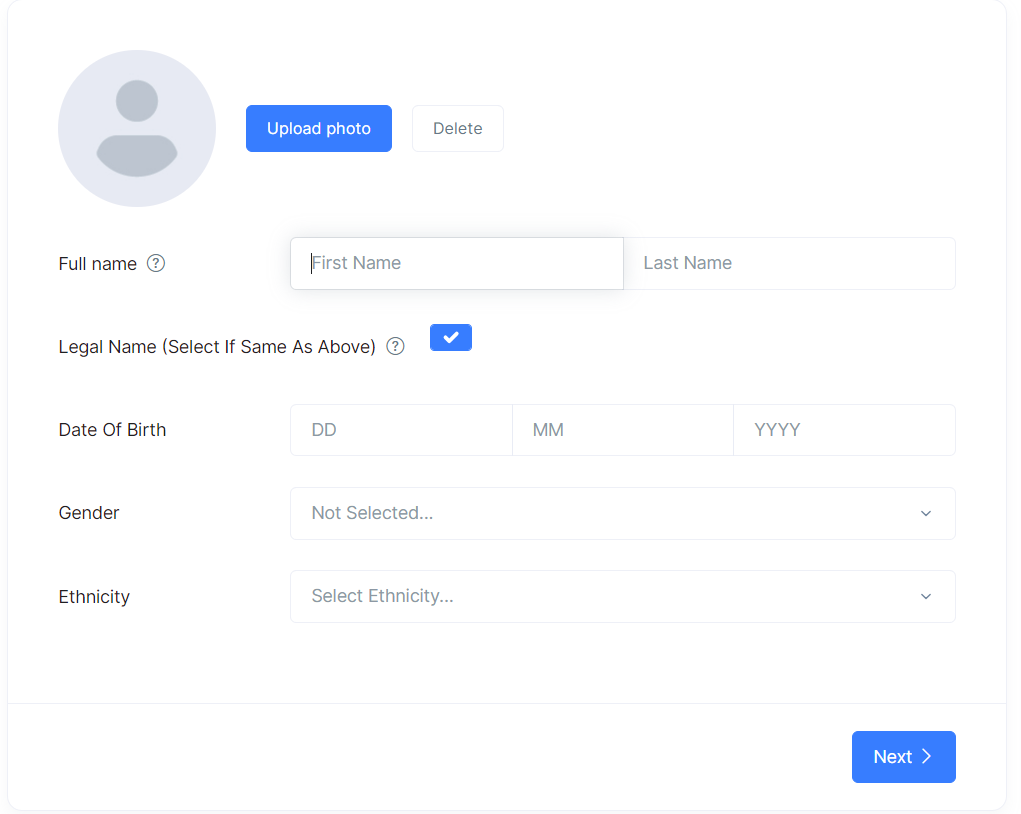
- With either method the next step is to add all the details for the patient's profile then select âNextâ.
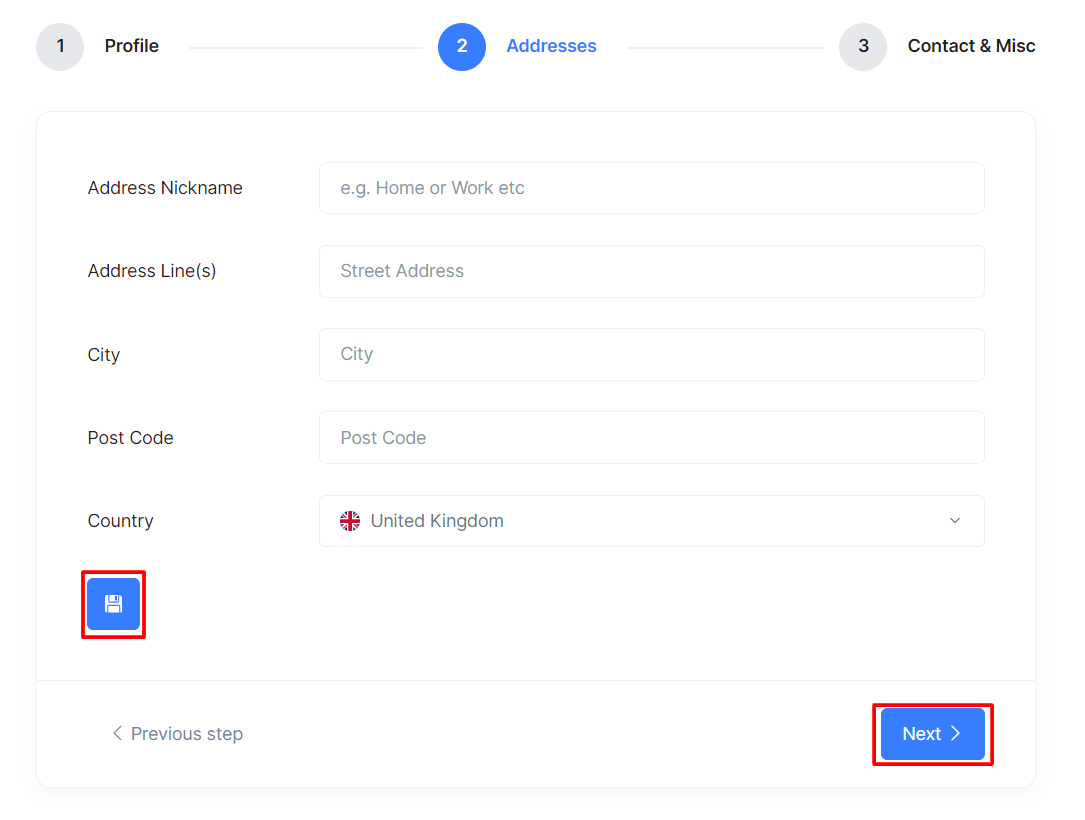
- Add the patient's address and then select the Save Button and Next.
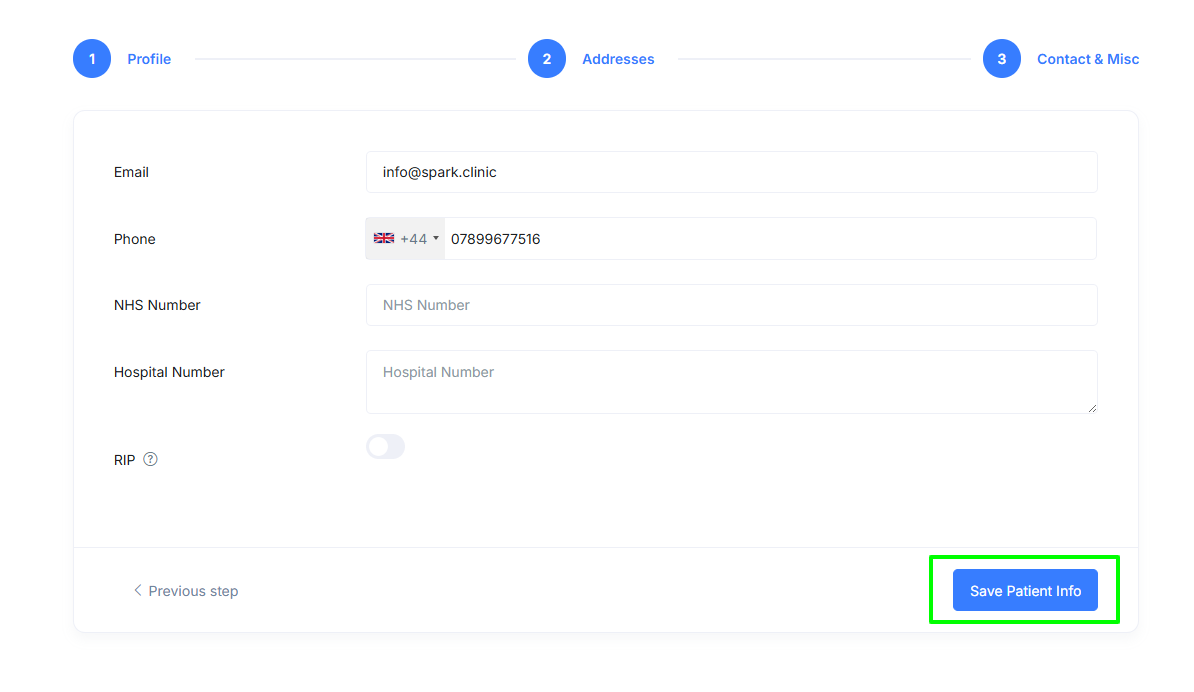
- Add the patient's email address, phone number, any warnings/allergies, NHS number and Hospital number (if applicable) then select the âSave Patientâ button to save the information and create the new patiten profile.
Patient Registration Forms
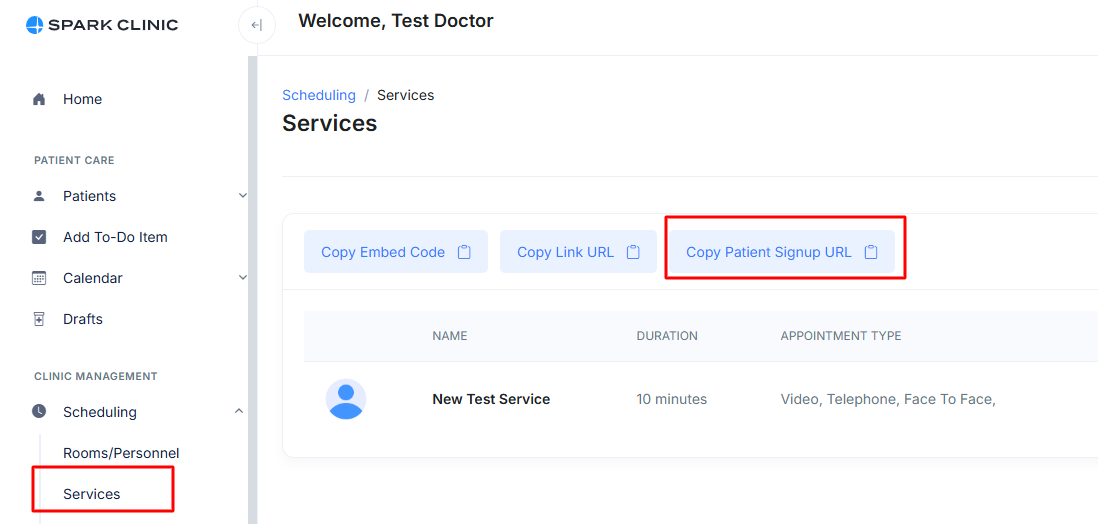
You can also add patients to your clinic by sending them a link to your patient registration form. The link can be found by logging in to your Spark Clinic account with a Practice Manager or Medical Officer user level. Navigate to the Clinic Management section and select the Scheduling dropdown and then âServicesâ where you will find the link to the Patient Signup called âCopy Patient Signup URLâ
This link can be shared with your patients for example via whatsapp, or in an email such as automated response to leads etc. Your patient will be able to complete the basic information required for the Spark Clinic to create a patient profile.
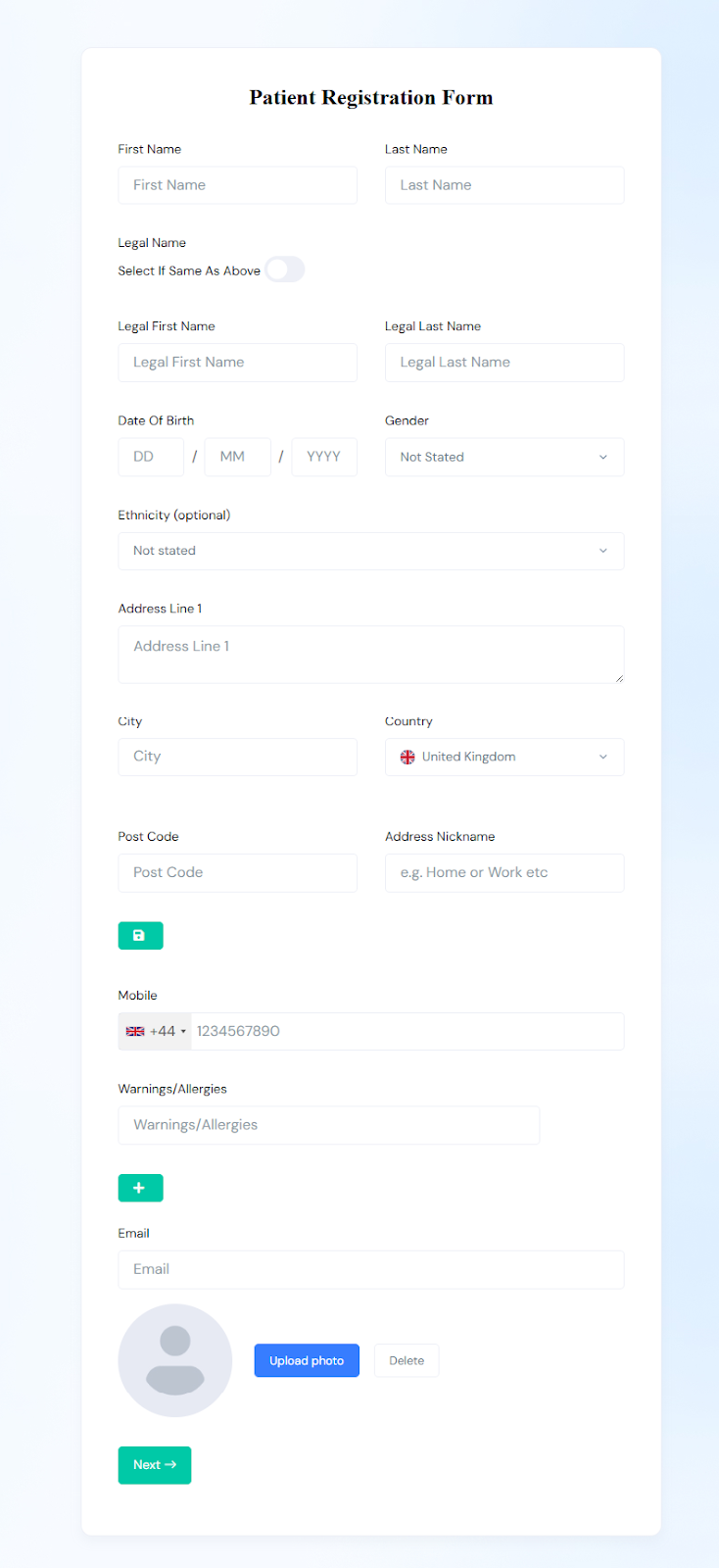
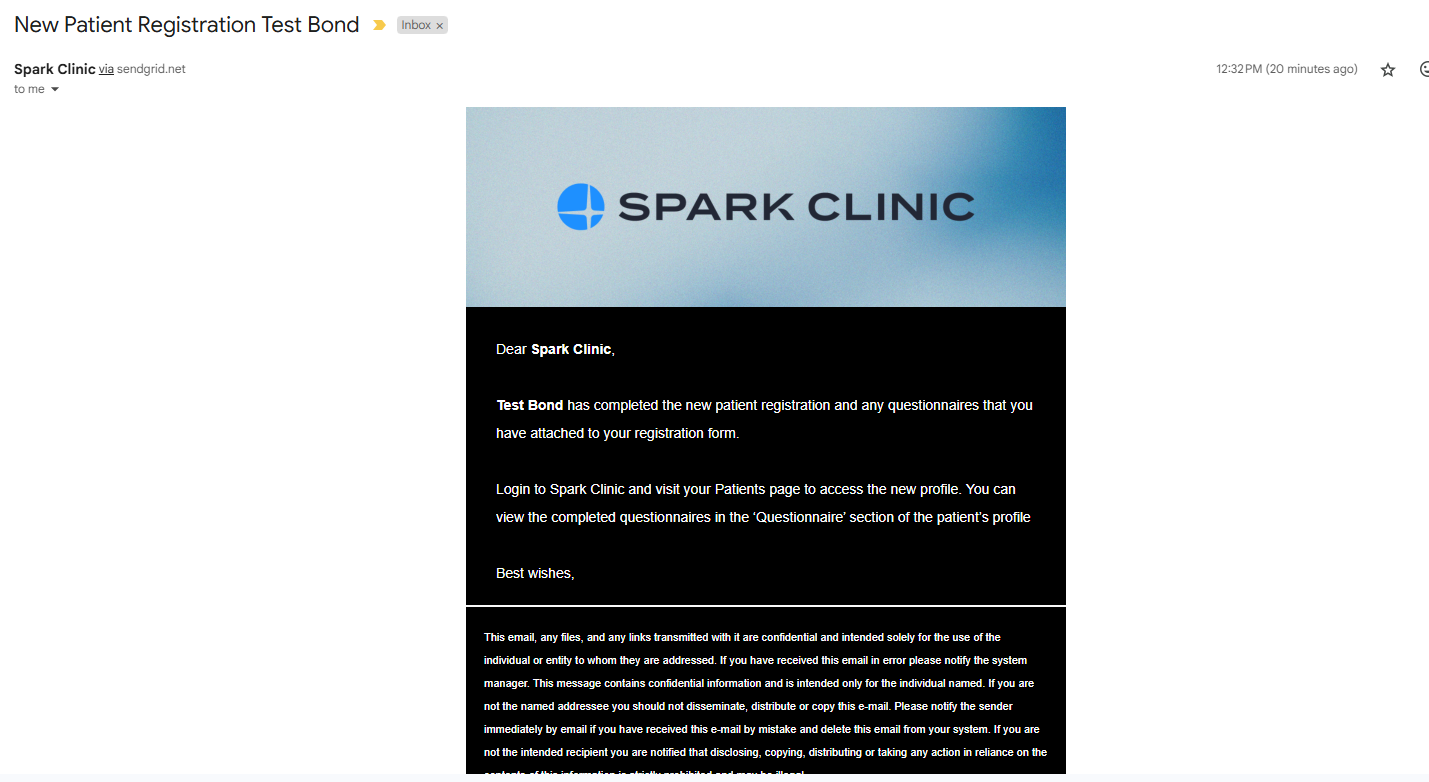
Upon submission, your registered clinic email address will receive an email from Spark Clinic notifying you that your patient has created an account.
Once this is done, you will be able to view the newly registered patient in your clinicâs âPatient listâ.