
Sparky Transcriber
Spark Clinic offers a transcription feature that can be used in all textboxes including drafting emails or preparing case notes.
How Do You Use Sparky Transcriber?
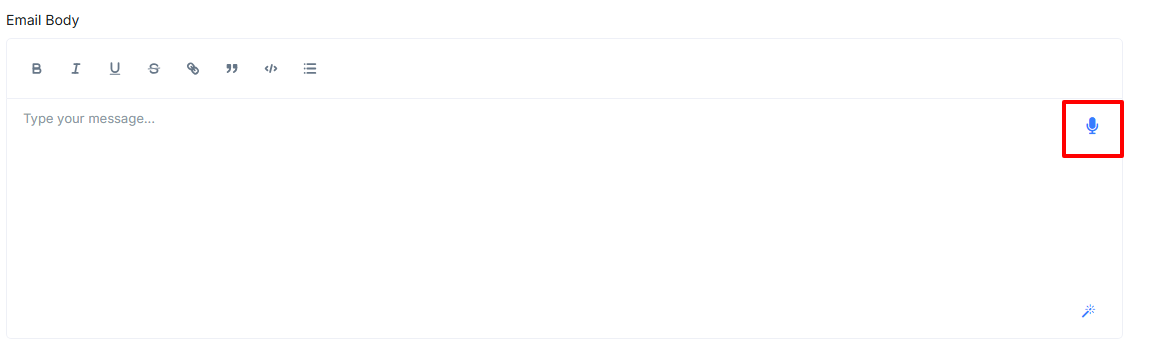
- To access the transcriber click the microphone icon within the text entry bubbleÂ
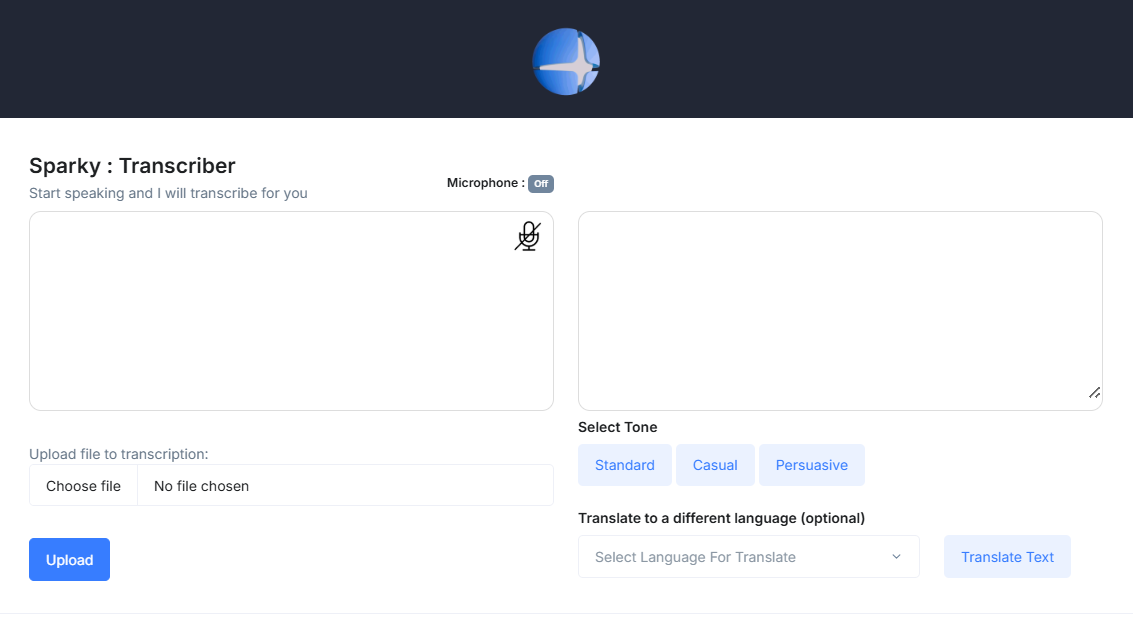
- A pop up will open where you can manage the transcription.
- You need to allow your browser to give Spark Clinic microphone access.
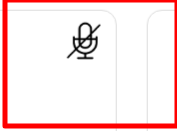
- To toggle your microphone on and off select the microphone icon below.
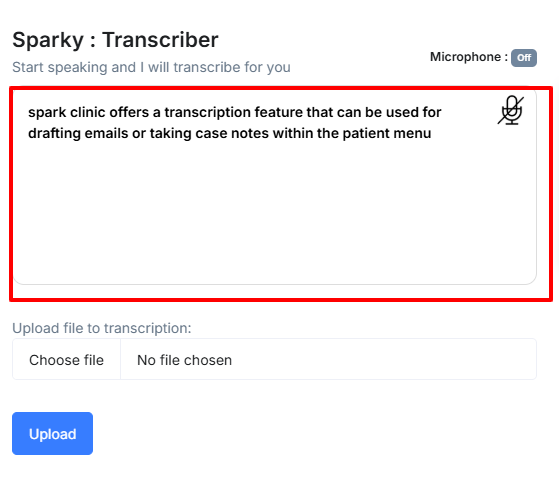
- Now your ready to transcribe begin speaking into your microphone, this will now appear below.
- Once you're done transcribing, our integrated AI system can refine your tone and correct grammatical errors. To do this we recommend selecting âstandard toneâ after transcribing.
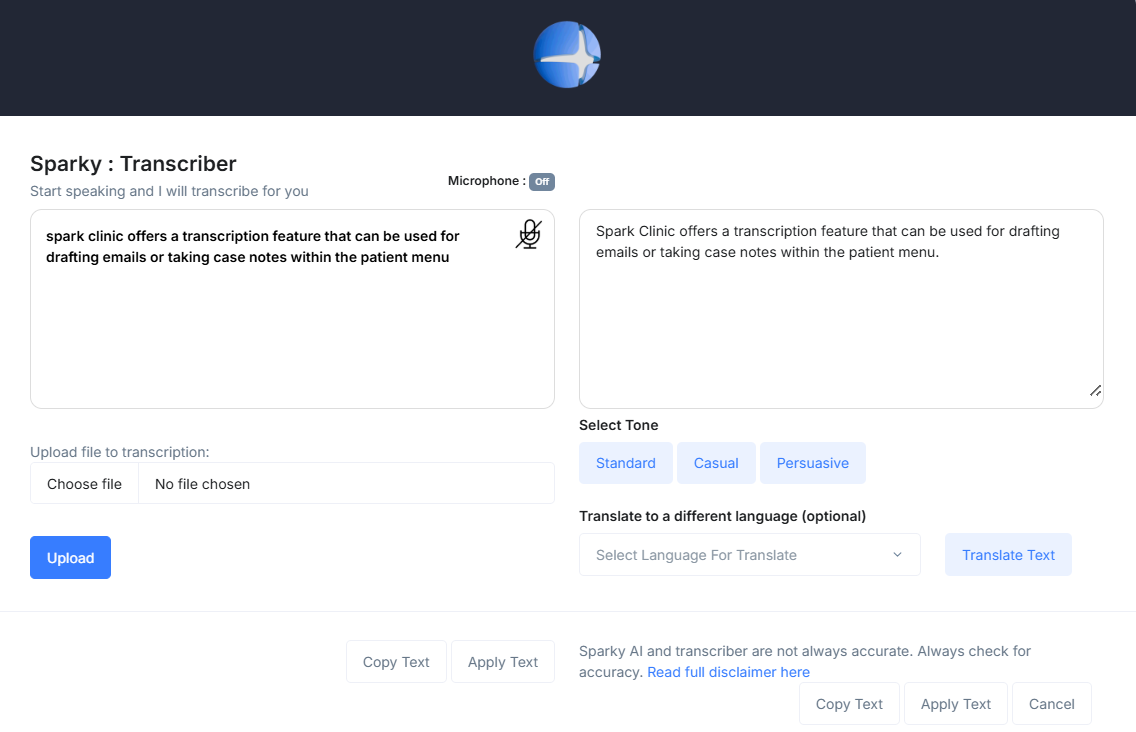
- In order to insert the finished transcription into the appropriate textbox select either our âCopy Textâ button then paste it into the desired place or âApply Textâ (on the right side under the finished text) which will insert the text to wherever your mouse was last typing.
- Audio recordings can also be uploaded for transcription into text by choosing a file from our menu then uploading it.
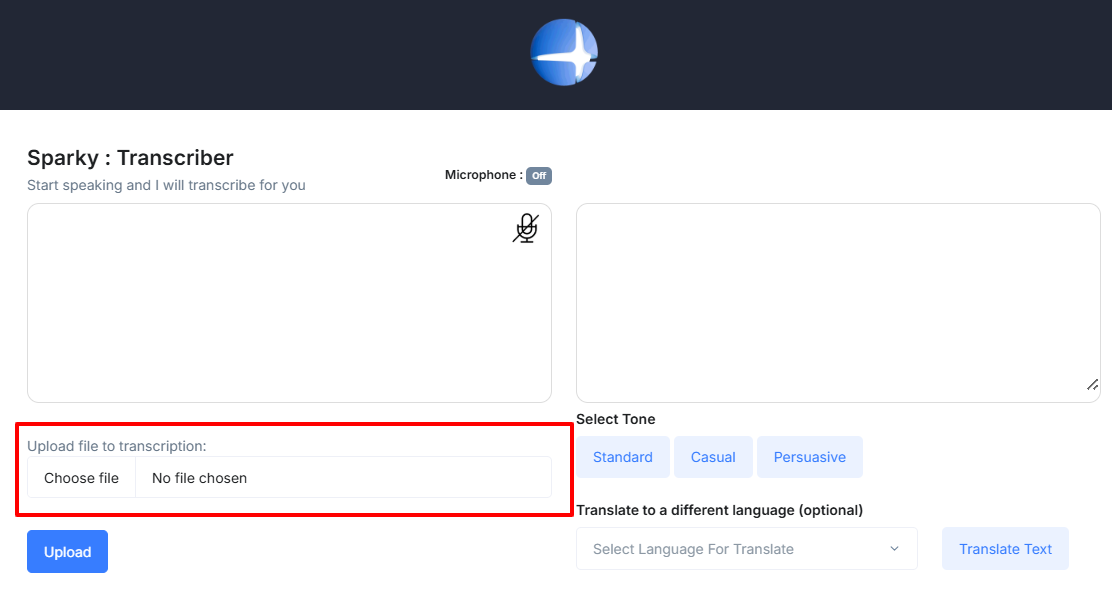
- Another feature we have is our language translation feature, where you can translate the text into a different language, to aid with any communication barriers.