Clinic Management: Personalising Your Clinic
As a Clinic Manager there are various settings you can change to personlise your clinic. Such as connecting your own unique email, customising The patient Signup Form and much more.
Clinic Management Features
Linking your email domain
Domain verification is an optional but enhancing step for any organisation using Spark Clinic to send emails. It enables chambers to use their own custom domain name, rather than the generic Spark Clinic domain, for all outgoing email communications. This process significantly enhances brand recognition and professionalism by allowing organisations to customise the email header with their own logo and branding elements.
- The settings for domain verification are managed within the Spark Clinic platform, specifically under the "Communications > Email Settings" section.
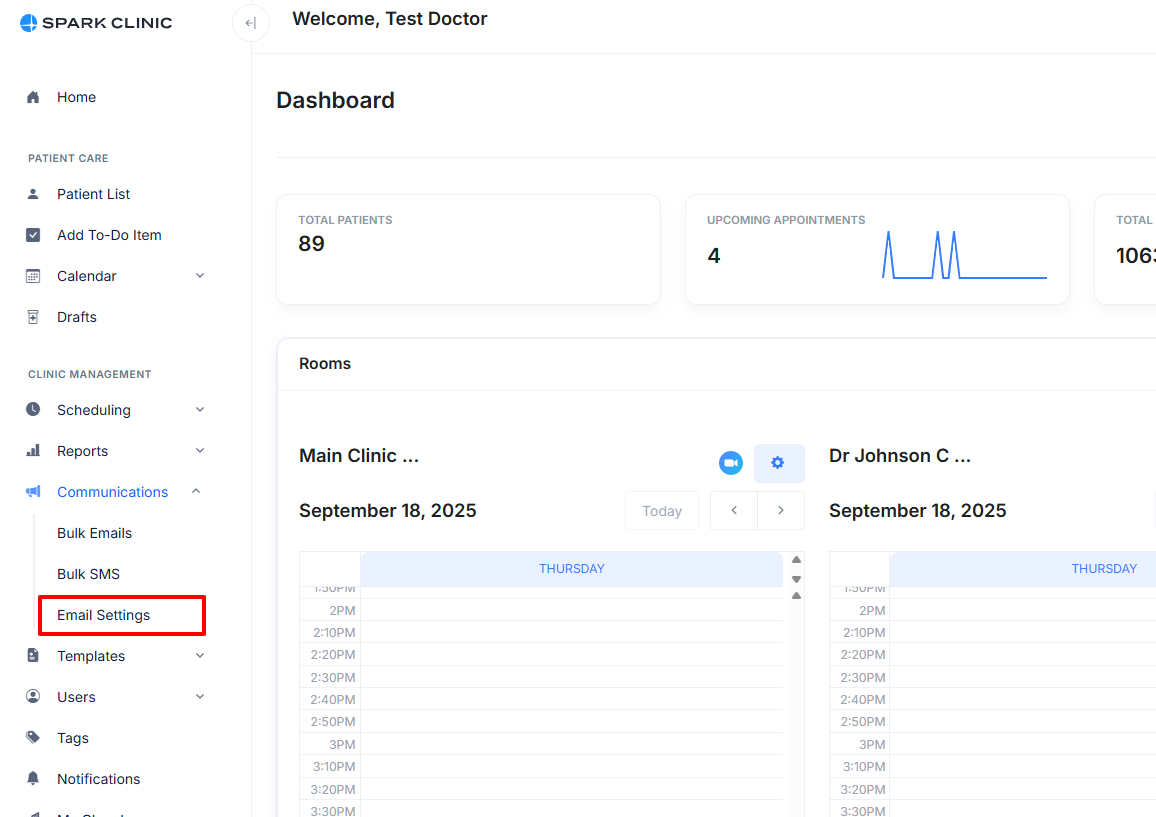
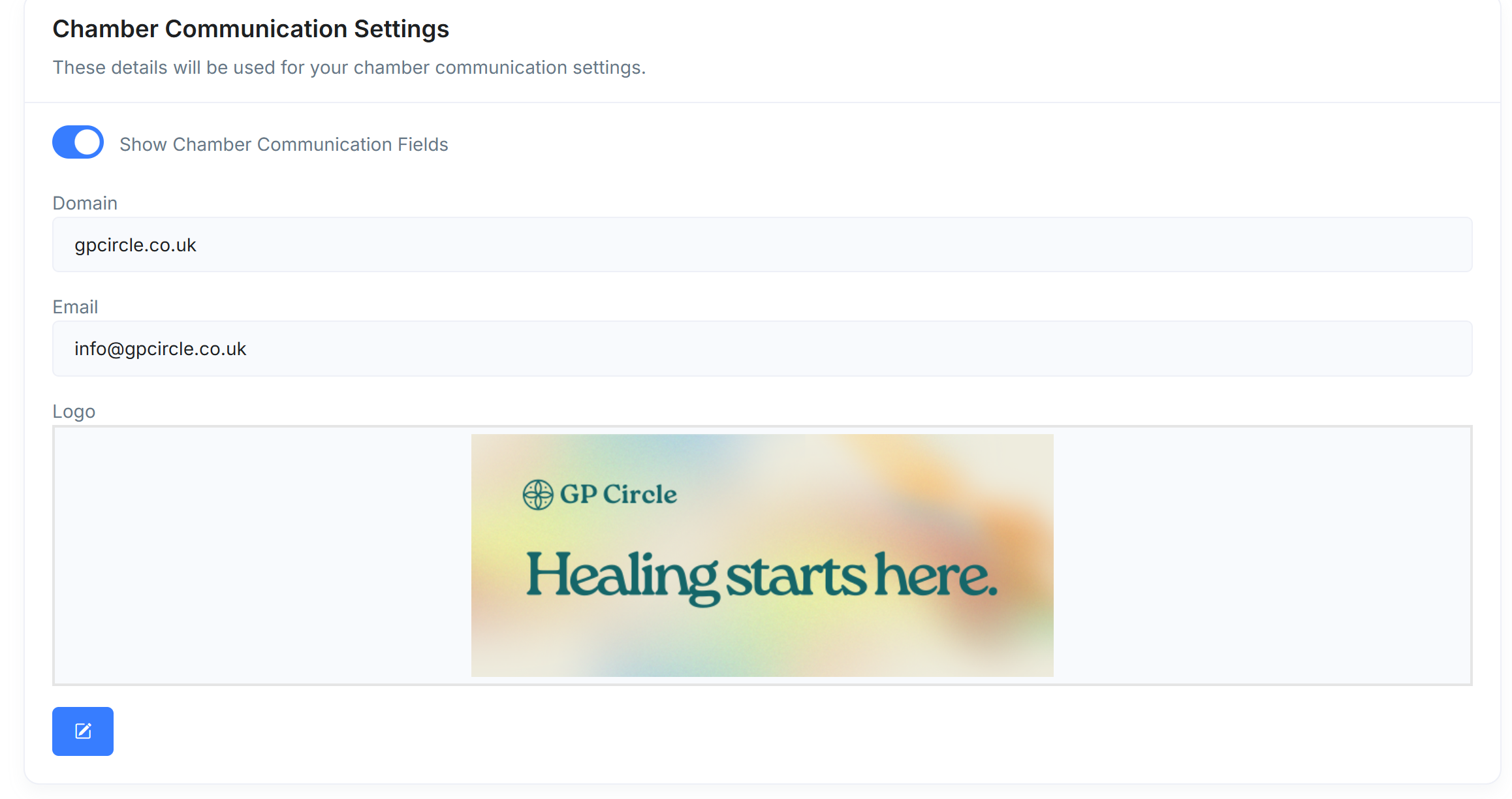
- Enable the âshow Chamber Communication fieldsâ and add your domain (your website address without www eg instead of www.spark.clinic enter just spark.clinic).
- Next, add the email address you wish to be displayed for the entire clinic on outgoing emails.
- Now add the header banner(normally your logo file) your clinic wishes to be displayed via email communication. We recommend for it to be 600 pixels wide and have a height of 250 pixels (600 x 250px) like the one below

Your settings now should like like the ones in the image below:
- Once you have saved your details Spark Clinic will display information which needs to be entered into your DNS host service. A DNS host service is where your website domain is kept, normally where you buy your domain e.g. GoDaddy. (You may need to contact your IT specialist for assistance)
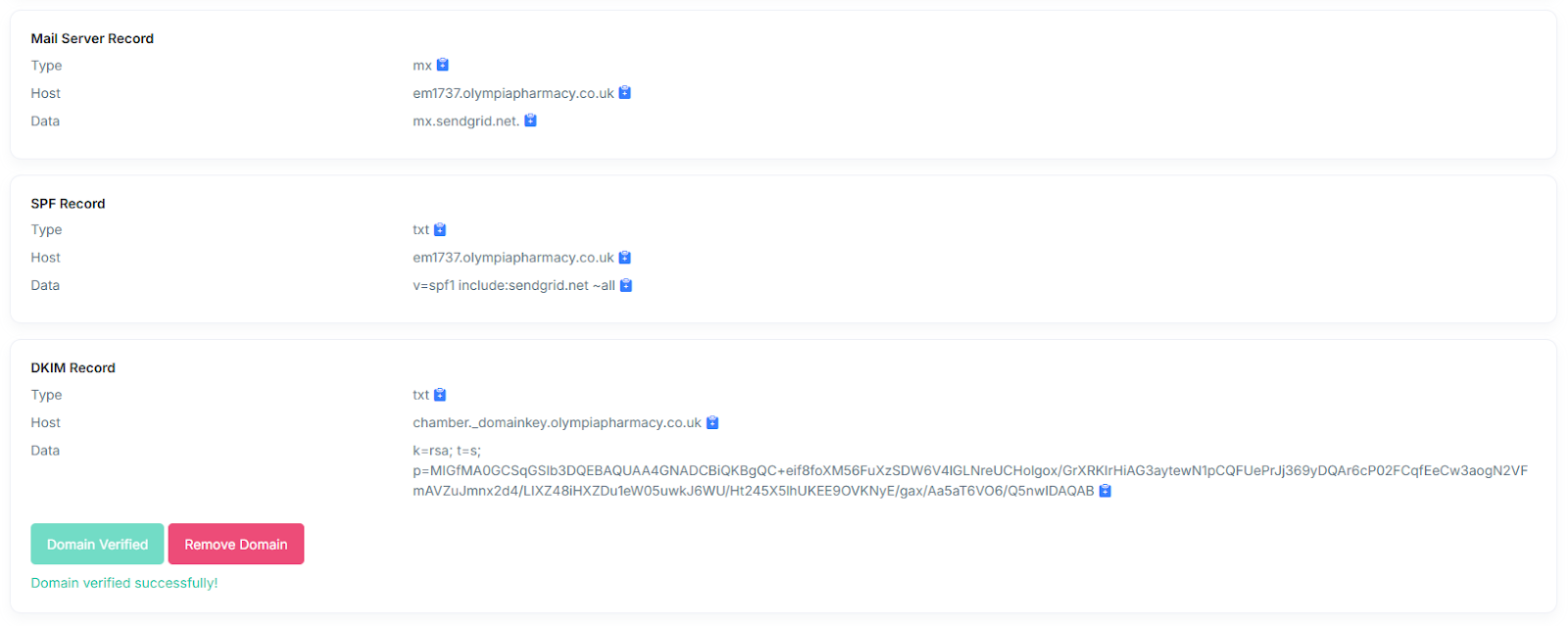
- After the settings have been added in your DNS host service, click the âVerify Buttonâ. A success message will indicate that your connection is now live.Â
- If verification fails you will need to contact your DNS hosting provider or IT specialist to ensure that the details have been entered correctly.
- Now that your Domain is verified every email sent from your clinic will use your unique domain instead of no-reply@spark.clinic
- You should send a test email to ensure that you are happy with the appearance of your emails.Â
Now that your custom domain is set, some emails to your patients via Spark Clinic will now contain your own branding and come from your custom email address.
The emails include, emails and email PDF to patients, invoices, invoice reminders and appointment confirmations.
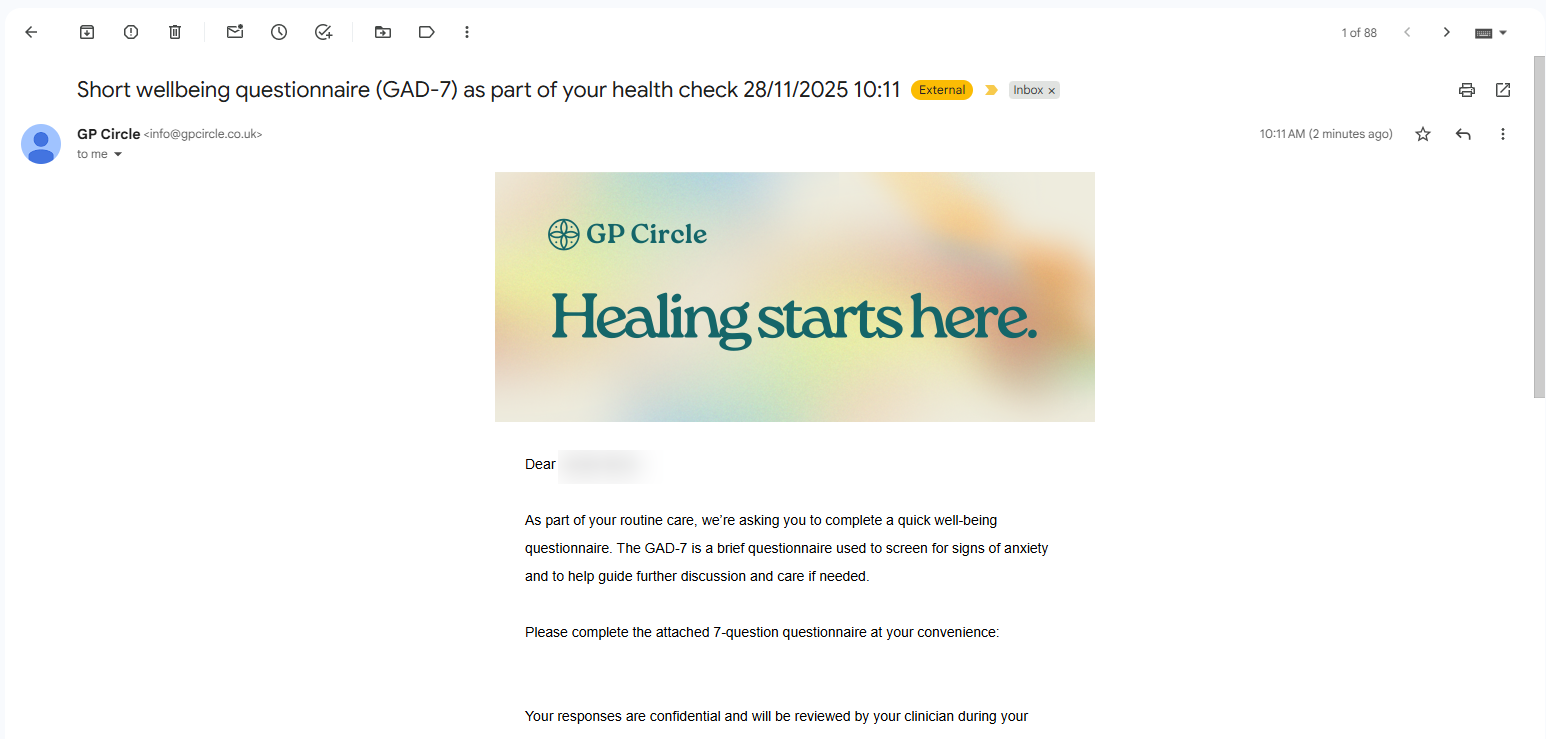
Here is an example of how a patient will view the email from the above customised domain.
Inbox List 
The Email