
Spark Clinic's IP Whitelisting Security Feature
Within Spark Clinic, you have the option to restrict access to your clinic by whitelisting specific IP addresses. This acts as an additional layer of security to help protect your data.
How Do You Whitelist Your IP Adress?
IP whitelisting is a useful security feature that ensures your records can only be accessed from approved locations or through a pre-approved VPN. Before enabling this feature, it is important to confirm with your Internet Service Provider (ISP) whether you have a static IP address.
If you are using a dynamic IP address, your IP may change periodically, which could result in you being locked out of your account when the address switches to an unregistered one.
To whitelist an IP address, you must be registered in Spark Clinic as either a Practice Manager or Medical Officer.
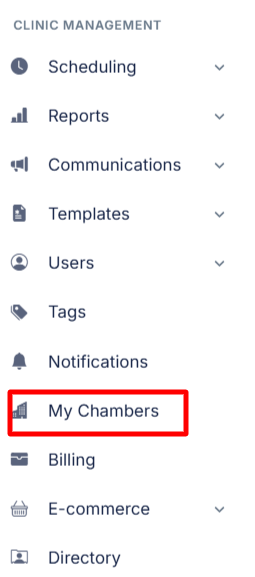
- Navigate to My Chambers within the Clinic Management section and select Manage next to your chamber.
- Add the IP address(es) you wish to whitelist.
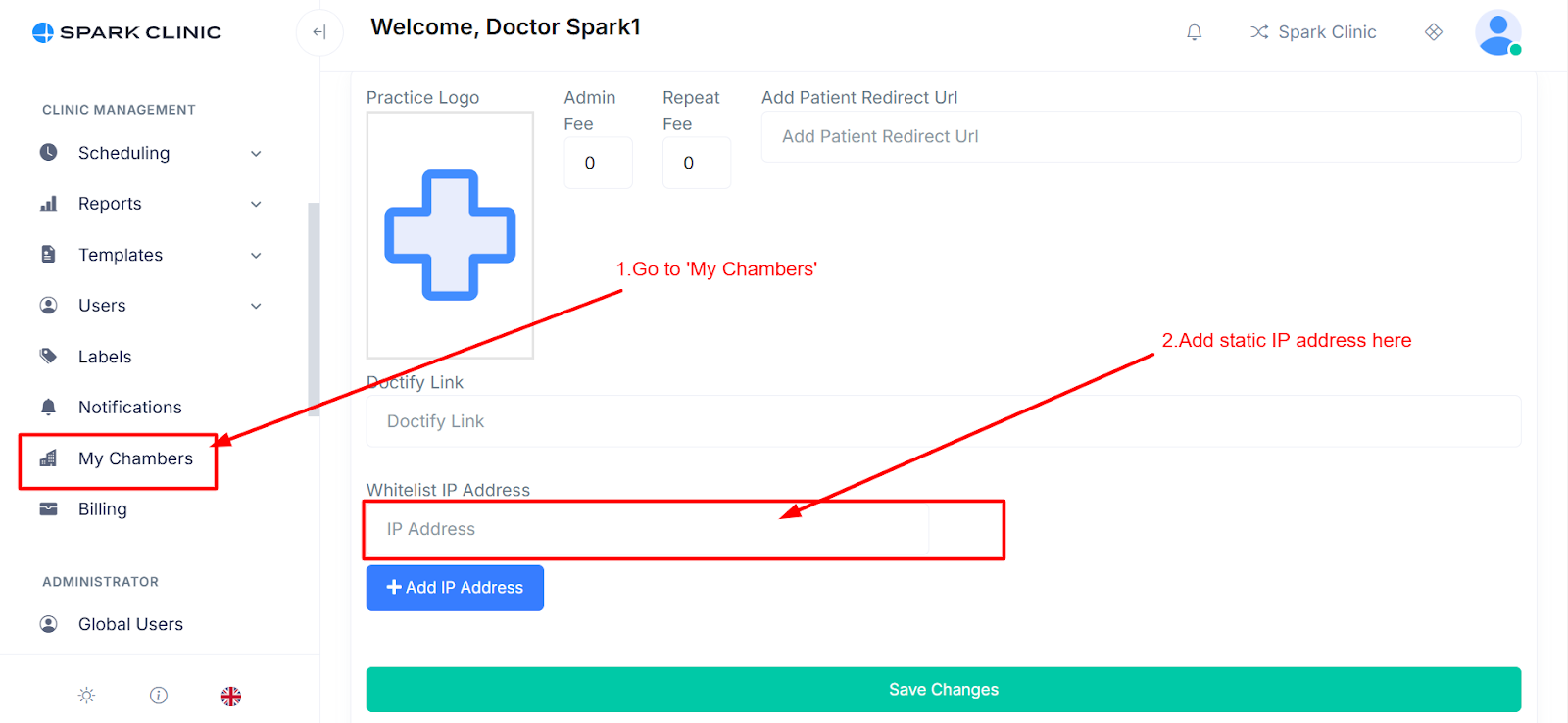
- Save your changes.
Once your whitelisted IP addresses have been saved, your chamber can only be accessed from those approved addresses. Any attempt to access it from an unregistered IP address will be blocked.