
Setting Up Printer For FP10 Printing
FP10 documents use a standardised NHS prescription paper size. You may need to generate FP10 prescriptions within Spark Clinic, and to print them correctly you must configure your printer to support the FP10 paper format.
In this example, we demonstrate the setup using an HP ENVY 6022, a basic home/office printer. This is for illustrative purposes only, your own setup may differ, and you may need to consult your IT department or your printer manufacturer if these steps do not match your operating system or printer model.
Before you begin, ensure your printer is properly connected to your computer.
HP ENVY 6022
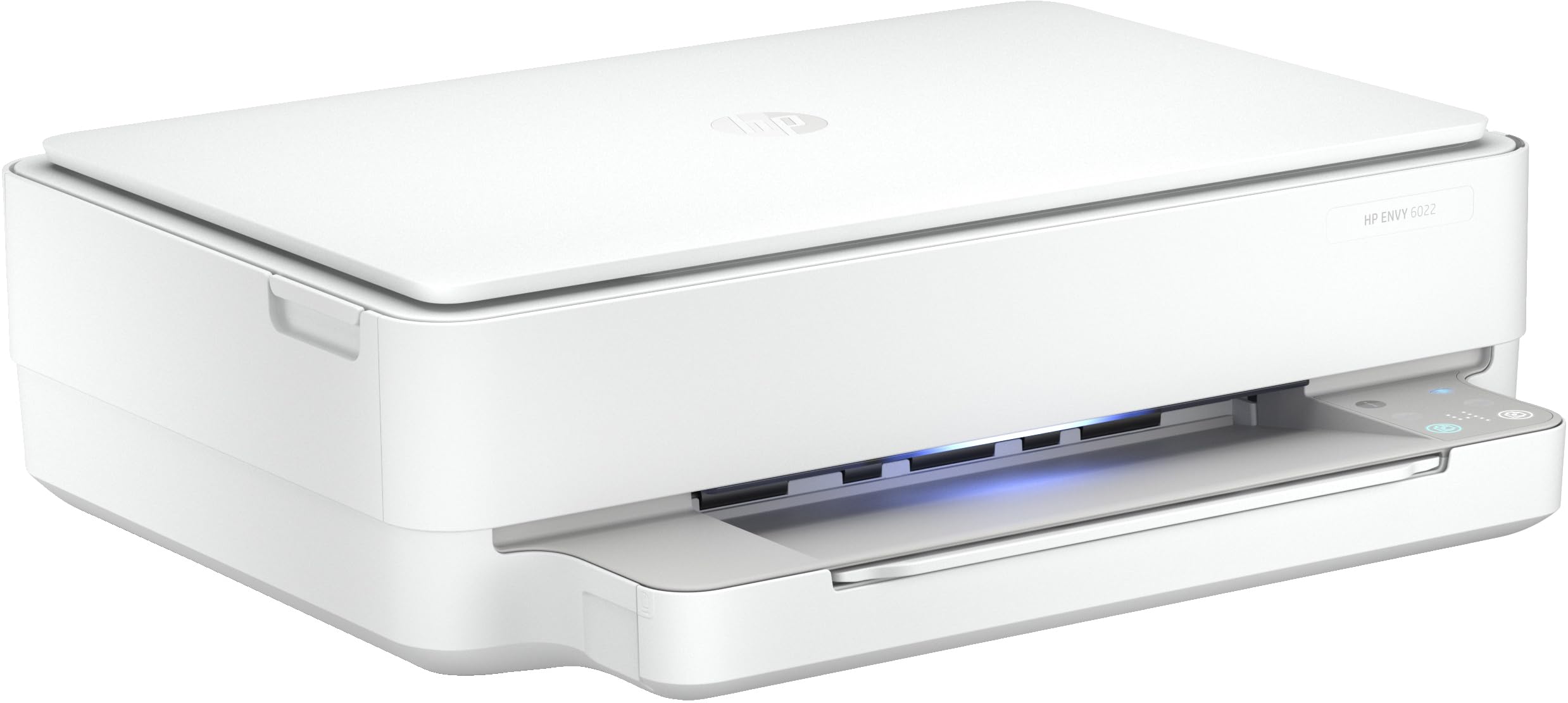
The HP Envy 6022 is a straightforward, entry-level home and office printer designed for simple, everyday printing tasks. WeâÃÂÃÂve chosen it for this example because its setup process is uncomplicated and easy to follow, making it a good illustration of the basic steps required to configure a printer for FP10 prescription printing.
Configure
Go to your control panel and select 'Devices and Printers'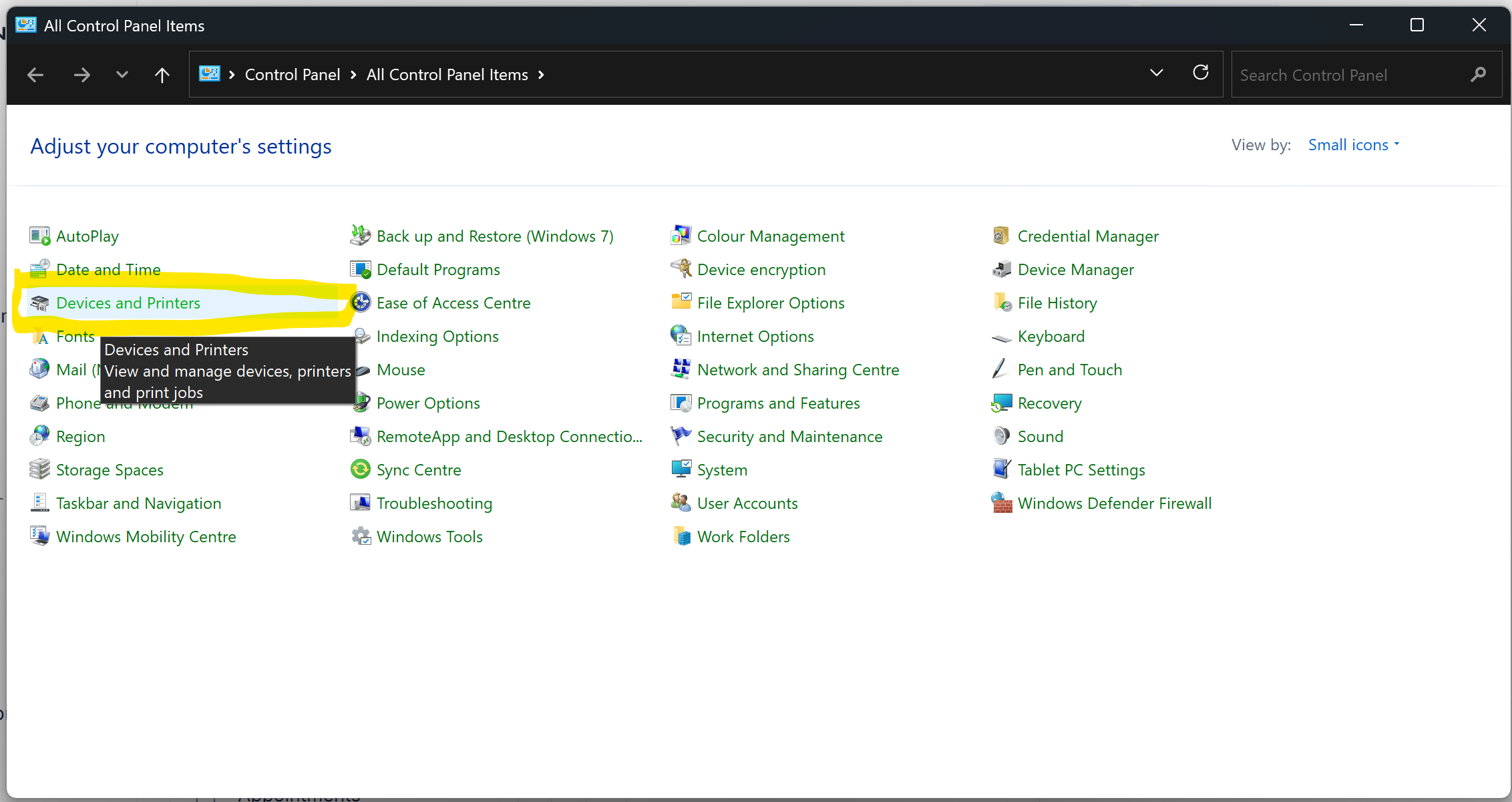
Select your printer and then 'Printing Preferences'. A dialogue will open. In our case, we need to select the 'Paper/Quality' option and select 'Custom'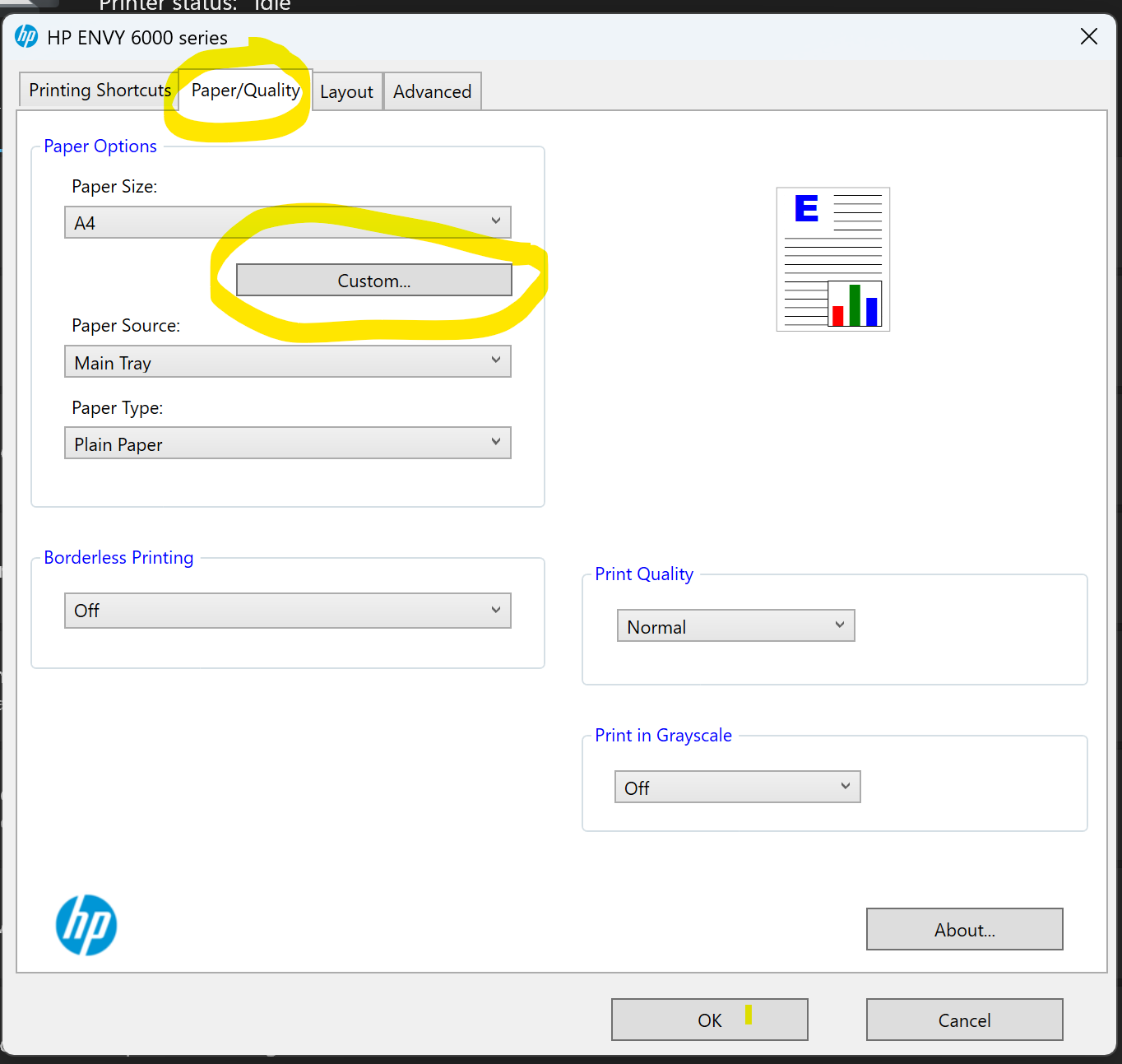
By pressing the 'Custom' button, we can configure our custom paper size. I enter a paper name of 'FP10' to make it easy to identify. Enter a width of 210mm and a height of 178mm, then save.
Printing
To print an FP10, simply open the FP10 format document that you generated in Spark Clinic using your Acrobat Reader (not browser), start printing and when the print dialogue opens, ensure you select the FP10 option (or whichever name you entered in the configuration for your custom paper size.
If that size is not showing, use the page setup option to select the correct format as follows: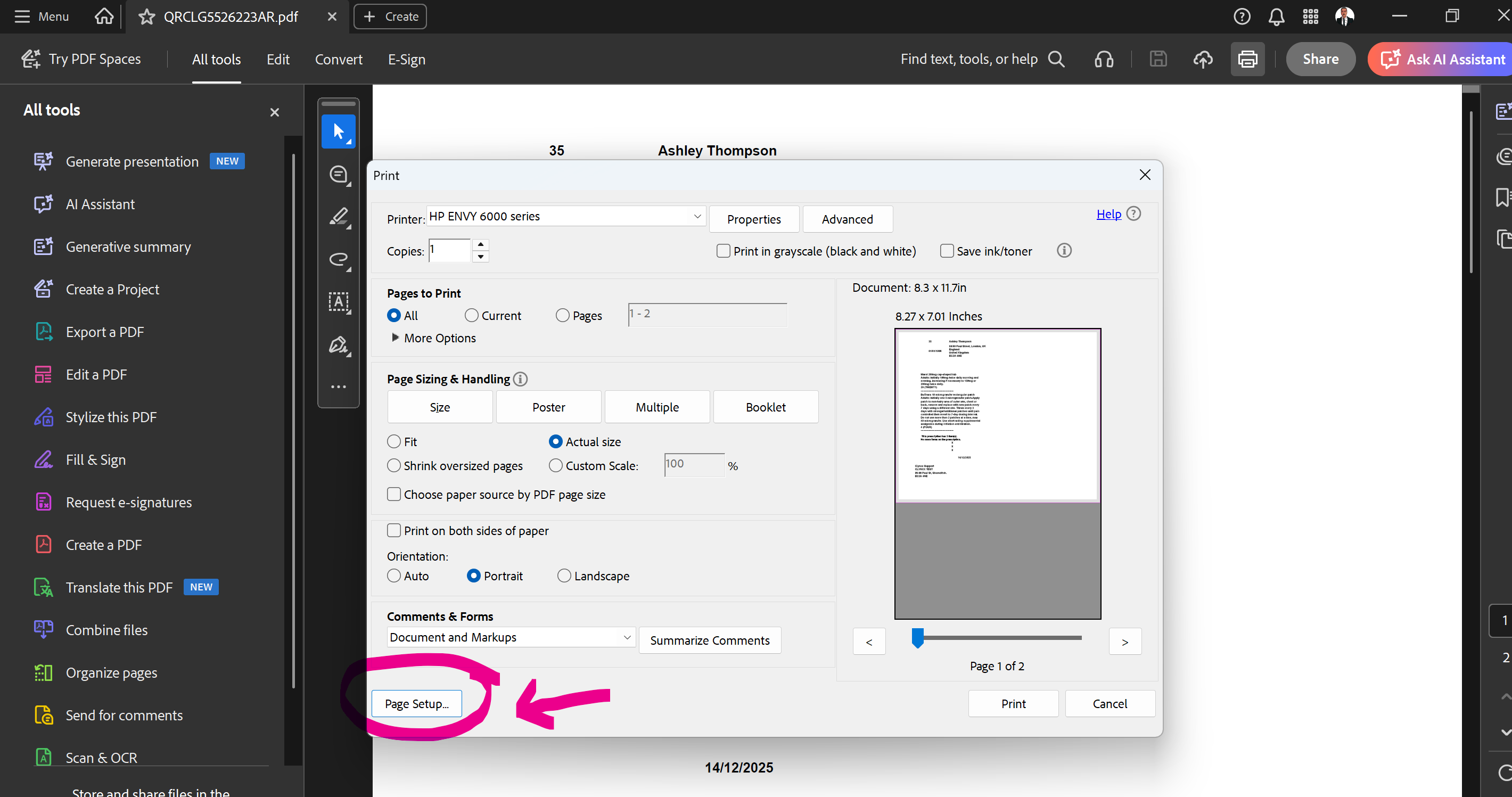
Select Page Setup
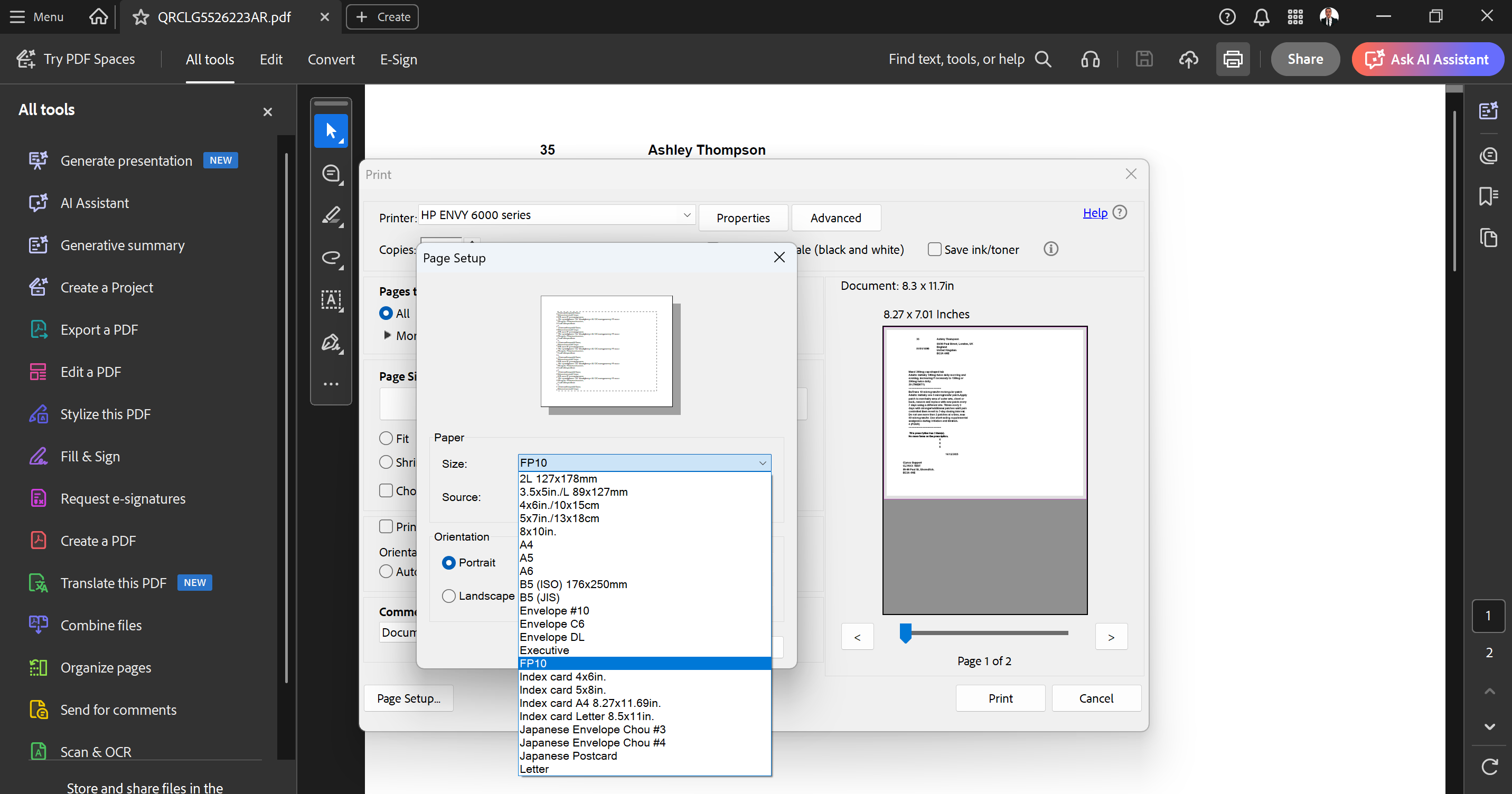
Select correct paper
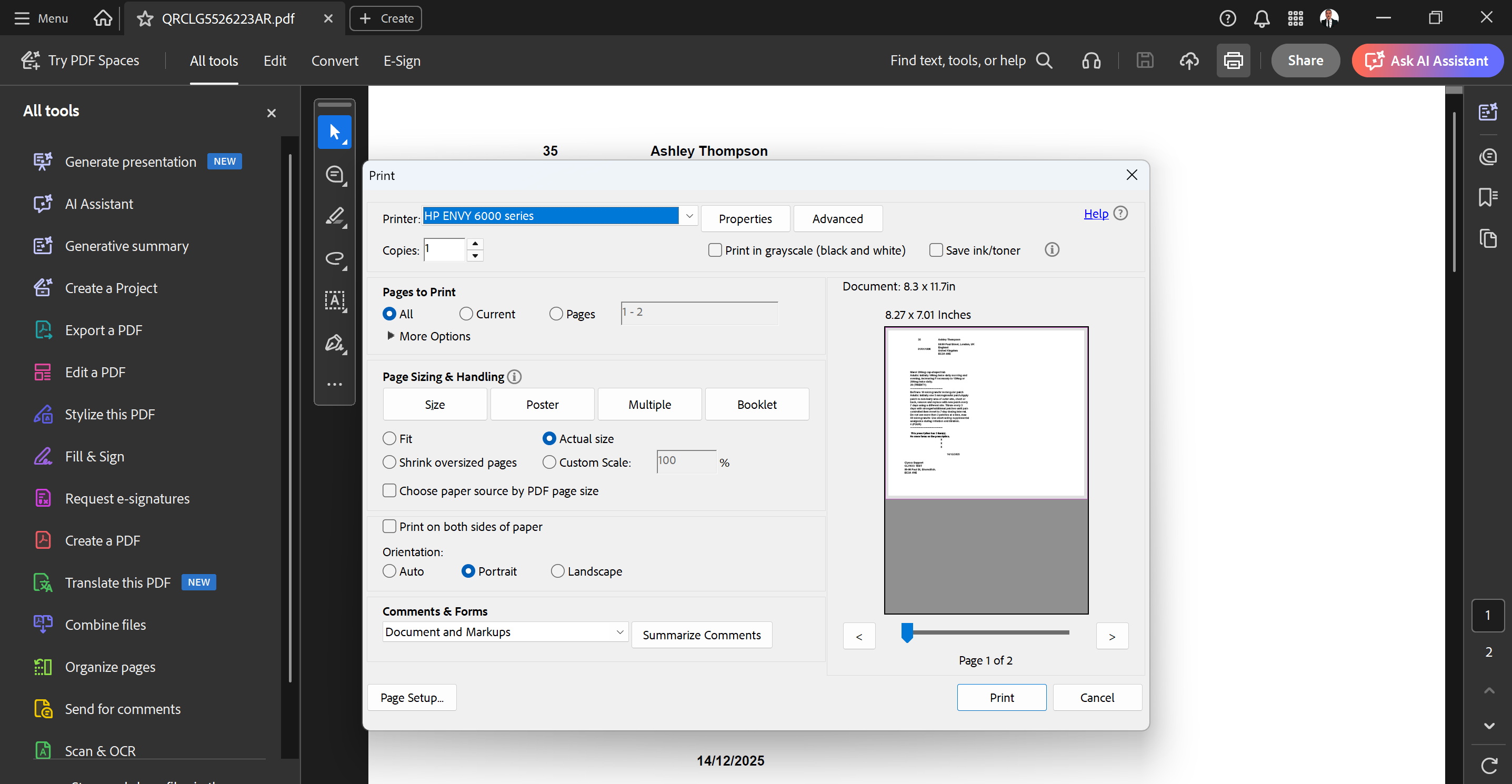
Ensure you select the 'Portrait' option and that the FP10 paper is inserted in the correct orientation for your printer.
This will ensure that you have a nicely printed FP10 prescription fully NHS BSA compliant.
Important Tip
Open your document using the PDF reader (Acrobat) and not on the browser. From your PDF reader you can then select the print option. Printing directly from the browser can cause issues with the formatting and print orientation.